Microsoft Copilot can be used to include content in the Excel workbook. You can pull information by uploading images and files and attaching cloud files. In this article, you will learn how to use the Add content in Copilot for Excel.
Key Takeaways:
- The Add content option is available from the Add (+) menu in the Copilot pane.
- You can upload images and files to provide more content.
- You can attach cloud files when relevant to your request.
- Added content can provide Copilot with more context for your prompt.
- Always review the response provided and workbook changes made by Copilot before using the results.
Table of Contents
Introduction
When using Copilot in Excel, the information in the current workbook may not always provide enough context for your request. You may have information in another file or image that is relevant to the task.
The Add content option lets you provide this information directly in the Copilot pane. For example, you may want to add:
- An image containing information you want Copilot to work with
- A file containing supporting information
- A cloud file related to the workbook or task
Instead of manually typing all the supporting information into your prompt, you can use Add content to include relevant material and then tell Copilot what you want to do with it.
How to Add Content in Copilot
Add Content
STEP 1: Open a new or existing Microsoft Excel.
STEP 2: Go to the Home tab and select the Copilot button.

STEP 3: In the Copilot panel, select the Add (+) menu.
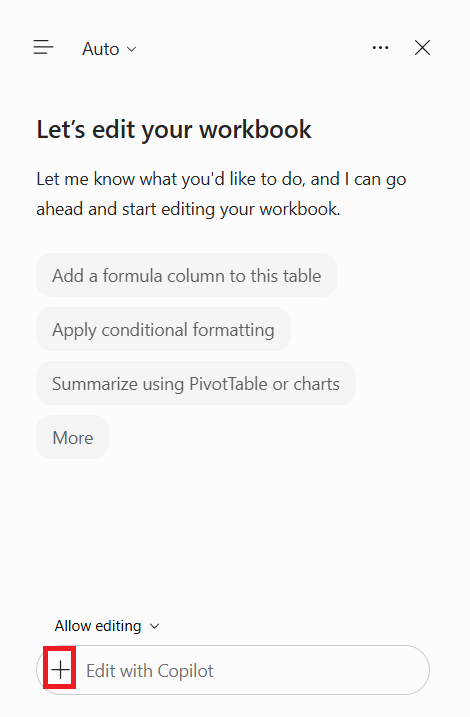
STEP 4: Select Add content.
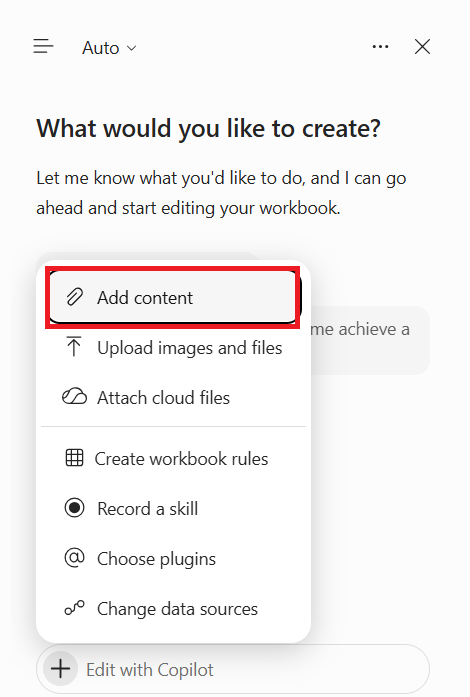
STEP 5: Copilot searches the content and inserts it into the worksheet.
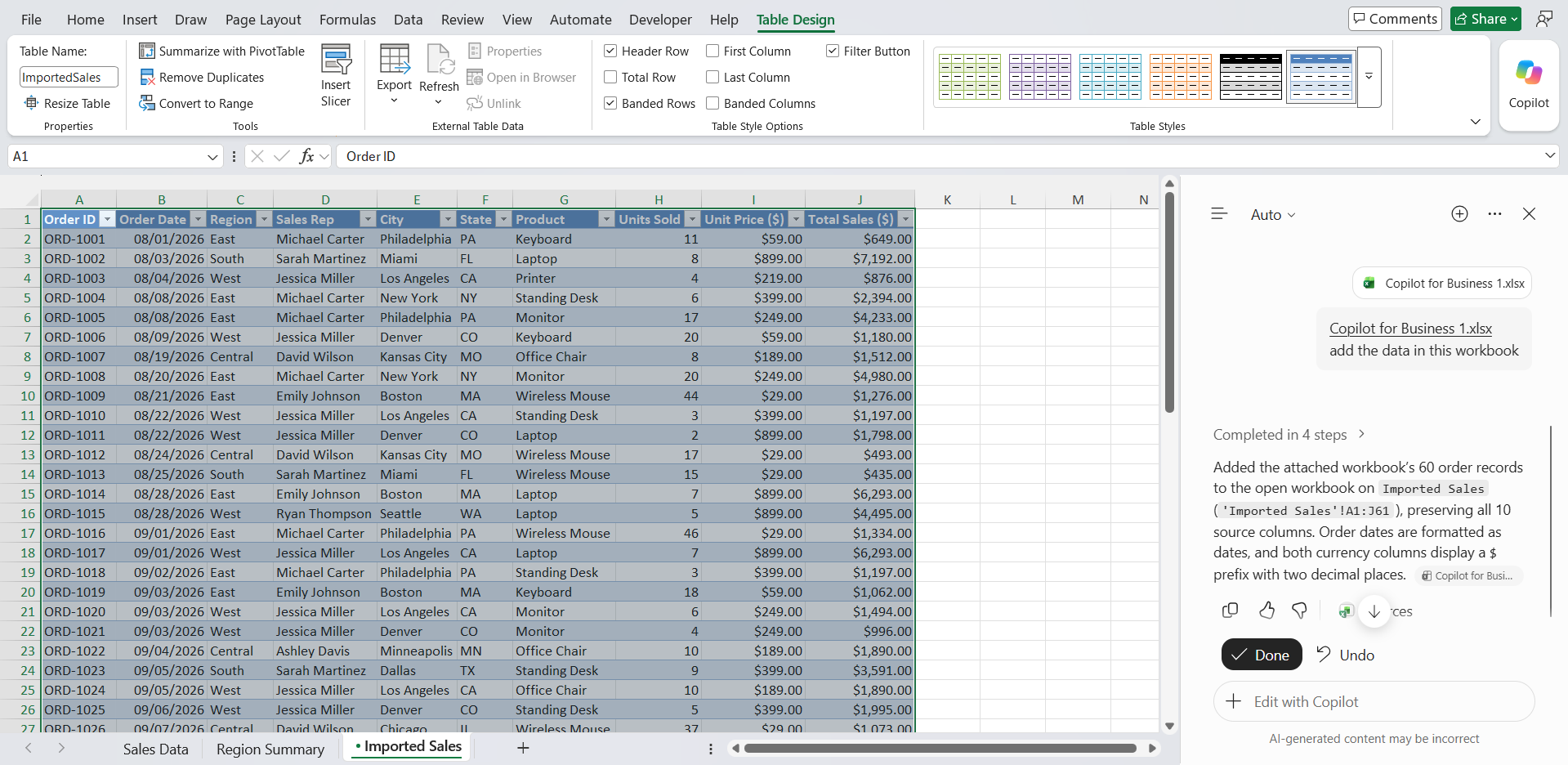
Upload Images and Files
The Upload images and files option lets you add supporting content directly to your Copilot request. You can use this option when the information you need is stored outside Excel. After adding the content, enter a prompt explaining what information you want Copilot to work with.
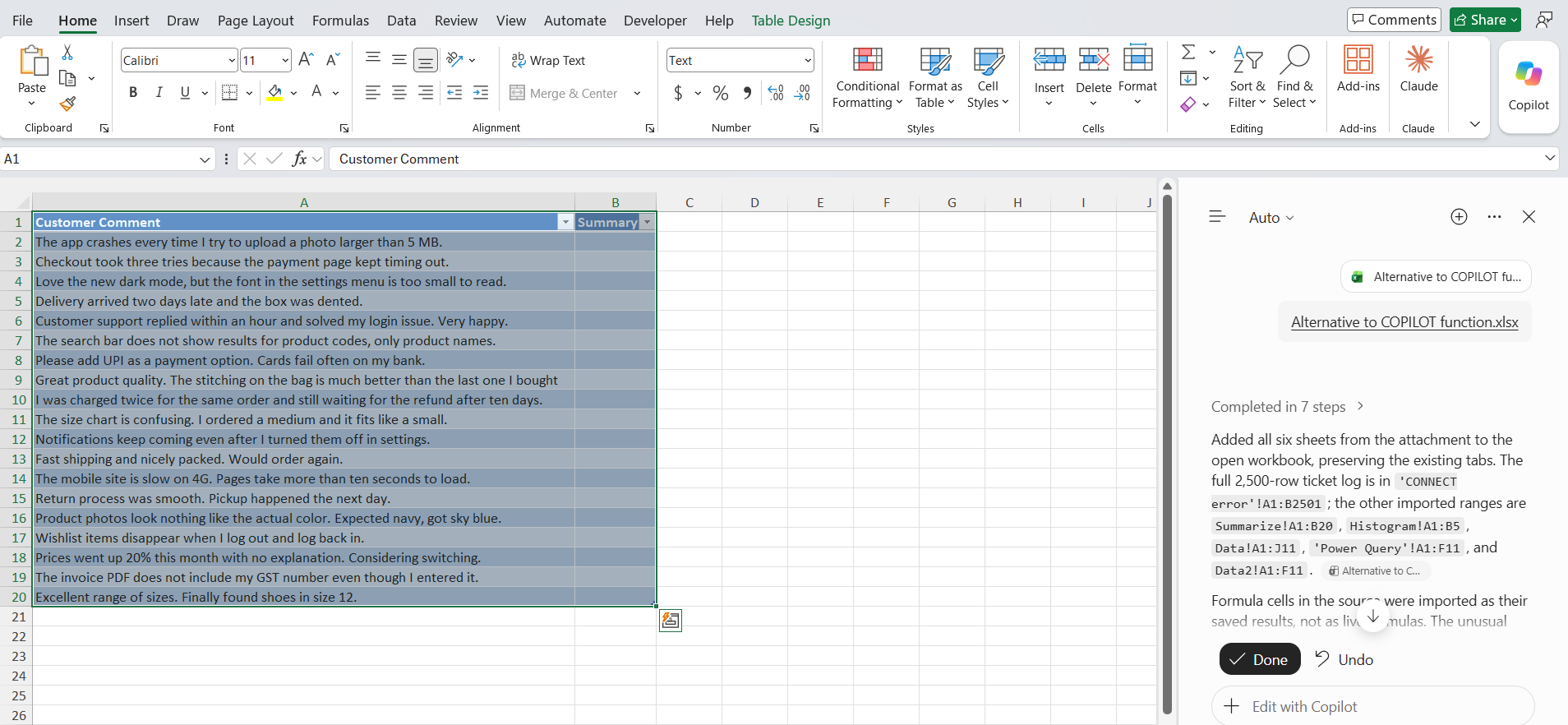
The more specific the prompt, the clearer the intended task.
Attach Cloud Files
The Add content menu also provides an Attach cloud files option. You can use this option when the supporting content is stored as a cloud file rather than being uploaded directly from your device.
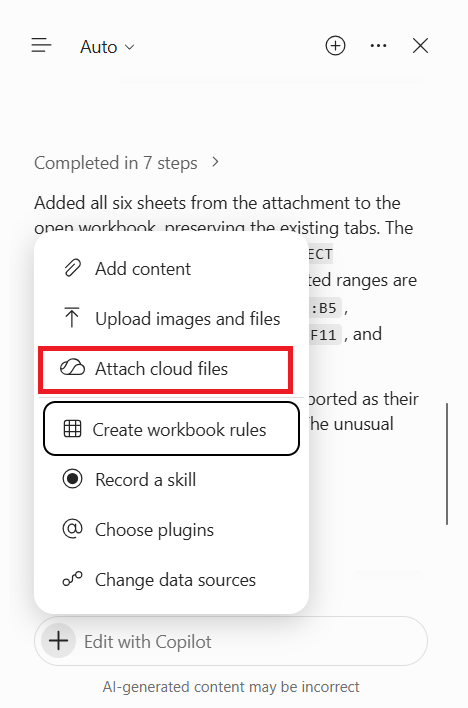
After attaching a relevant file, tell Copilot how you want the information to be used.
Tips & Tricks
- Add only content that is relevant to the task you want Copilot to perform.
- Clearly tell Copilot how the added content relates to the workbook.
- Mention the specific information you want Copilot to find or work with.
- Use detailed prompts instead of broad requests.
- Review Copilot’s output before relying on the information or saving workbook changes.
FAQs
1. What is Add content in Copilot for Excel?
Add content lets you provide extra information, such as images or files, that Copilot can use as context for your request.
2. What type of content can I add to Copilot in Excel?
You can add images and files or attach relevant cloud files to provide additional context.
3. How do I add a file to Copilot in Excel?
- Open the Copilot pane
- Select the Add (+) menu
- Choose Add content
- Select the appropriate option for adding your content.
4. Why should I add content to a Copilot prompt?
Adding content can be useful when the information Copilot needs is not available in your current workbook. It gives Copilot more context for understanding your request.
5. What should I do after adding content to Copilot?
Enter a clear prompt explaining what you want Copilot to do with the added content. Be specific about the information you want it to find, summarize, or organize.

John Michaloudis is a former accountant and finance analyst at General Electric, a Microsoft MVP since 2020, an Amazon #1 bestselling author of 4 Microsoft Excel books and teacher of Microsoft Excel & Office over at his flagship MyExcelOnline Academy Online Course.

 30 Days - Full Access