Free Practice Workbook
Microsoft Copilot helps you perform tasks by answering questions and analyzing data. If you need to refer to a previous conversation or use an earlier prompt again, there is no need to start from scratch. You can view and reuse previous conversations through chat history. In this article, you will learn all about Copilot chat history.
Key Takeaways:
- Copilot chat history stores your previous conversations.
- You can view old chats from the Copilot pane.
- You can reuse prompts from previous conversations.
- You can delete individual chats from the history.
- Deleting chat history does not affect workbook data.
Table of Contents
What is Copilot Chat History?
Copilot chat history allows you to store previous conversations so that you can refer to it whenever needed. You can:
- Review earlier responses
- Reuse past prompts
- Continue unfinished discussions
- Save time by avoiding repetitive work
How to View Copilot Chat History
You can easily view the chat history in Copilot by following the steps below:
STEP 1: Open the Excel workbook that contains the chat history.
STEP 2: Go to the Home tab and select the Copilot button.

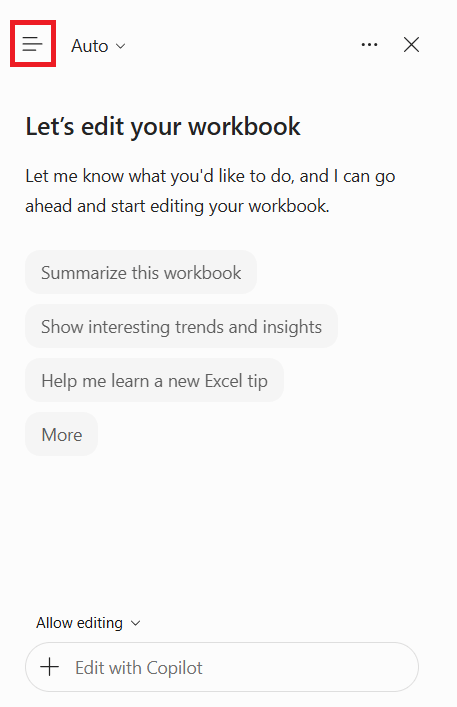
STEP 3: In the Copilot pane, go to the top-left corner and select the menu icon.
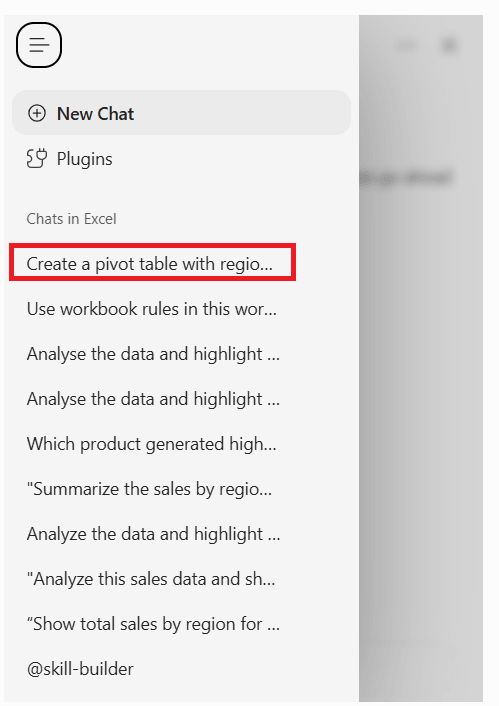
STEP 4: Select the conversation that you want to view.
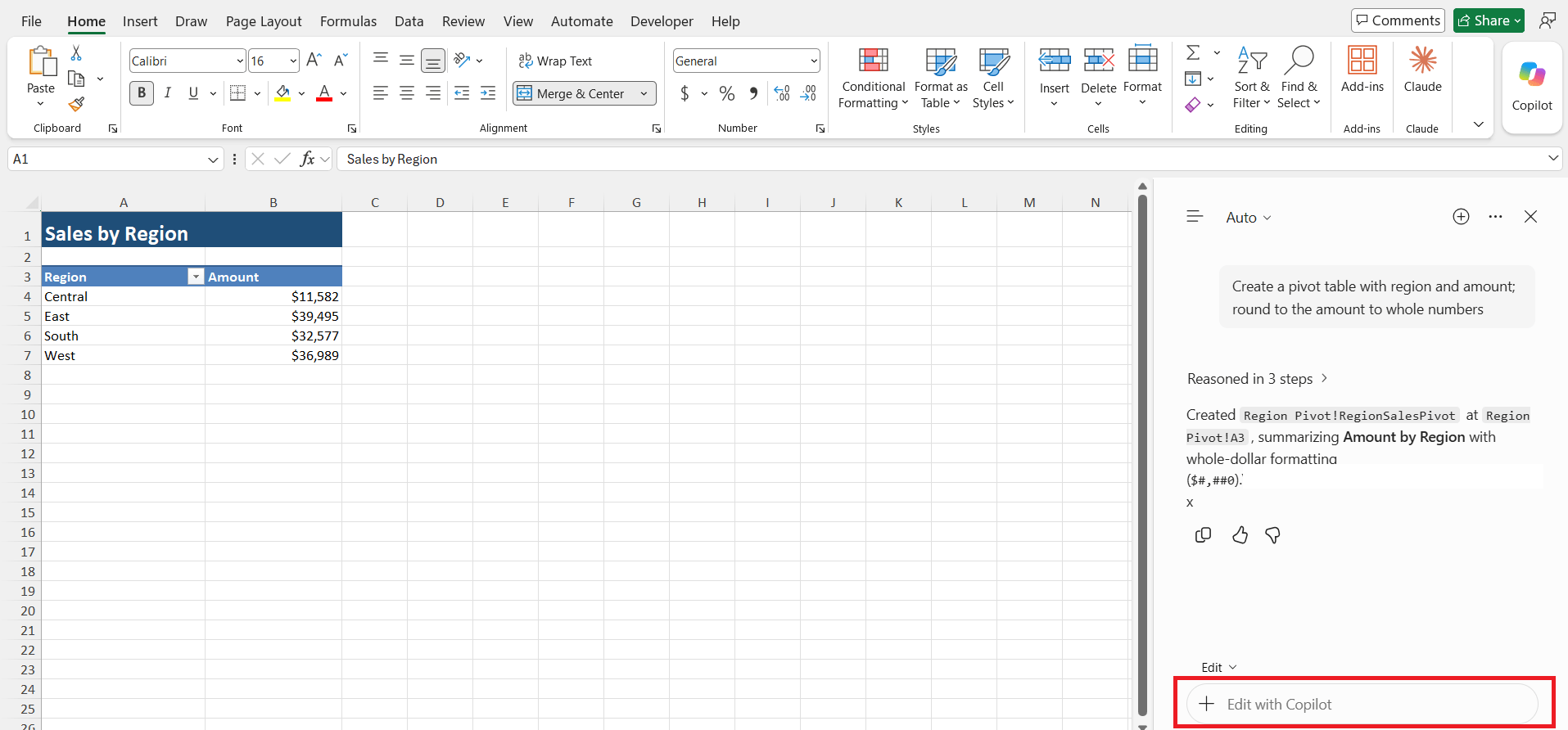
STEP 5: The chat history lets you pick up where you left off. You can enter a follow-up question in the same chat.
How to Reuse Previous Copilot Prompts
You can reuse prompts from your previous conversations instead of writing them again. This is useful when you perform similar tasks in different workbooks.
STEP 1: Open the Copilot pane and select the Menu icon.
STEP 2: Open the conversation containing the prompt you want to reuse.
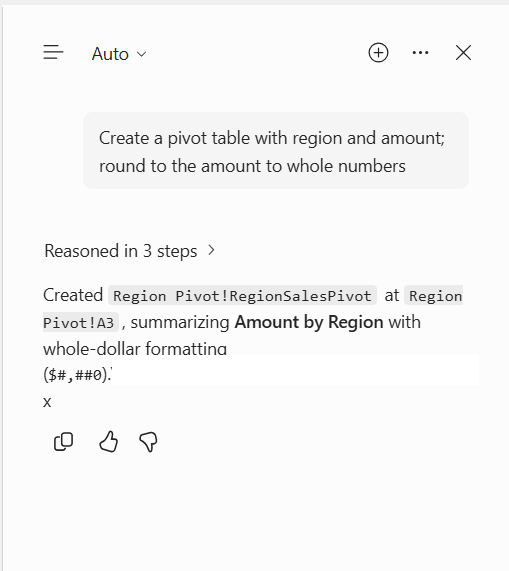
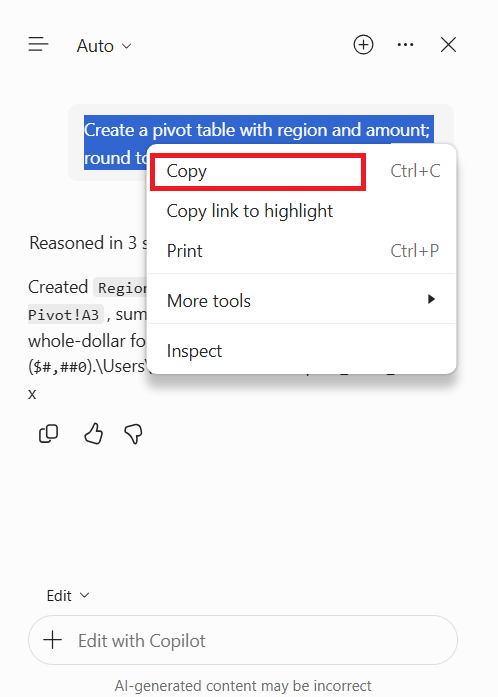
STEP 3: Find the previous prompt and copy it.
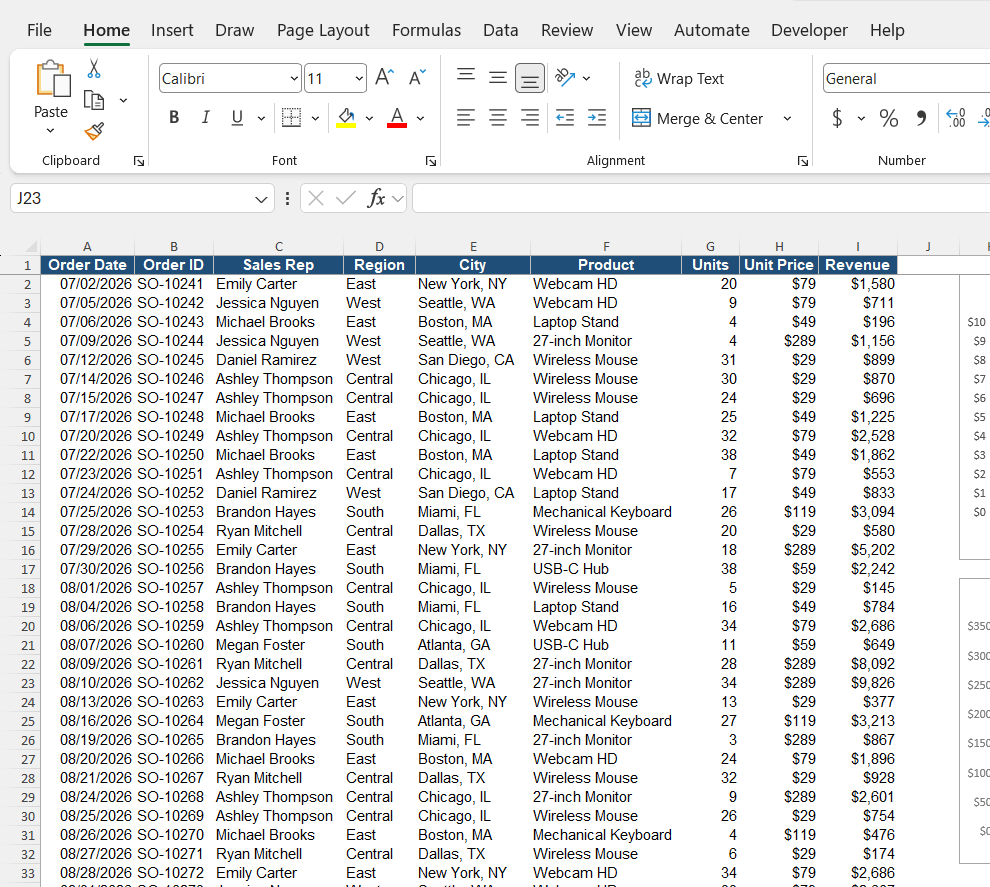
STEP 4: Open a new Copilot conversation or another workbook.
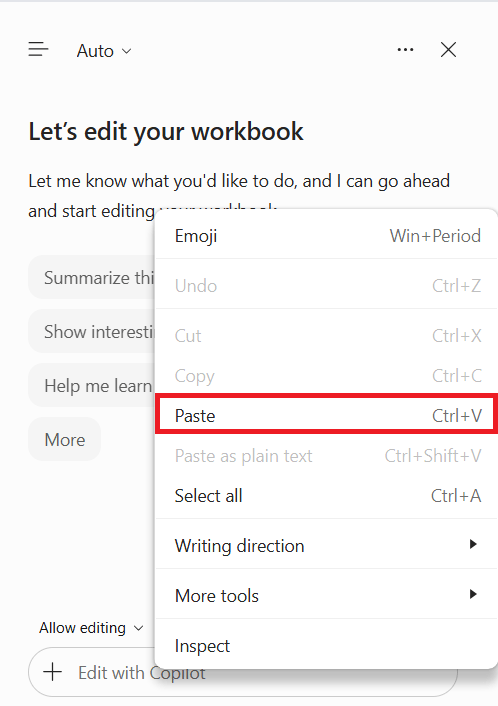
STEP 5: Paste the prompt and adjust the instructions if required.
How to Delete Copilot Chat History
Delete Single Conversation
If you want to delete a single conversation in Copilot, you can do that by following the steps below:
STEP 1: Open Microsoft Excel and select the Copilot button.
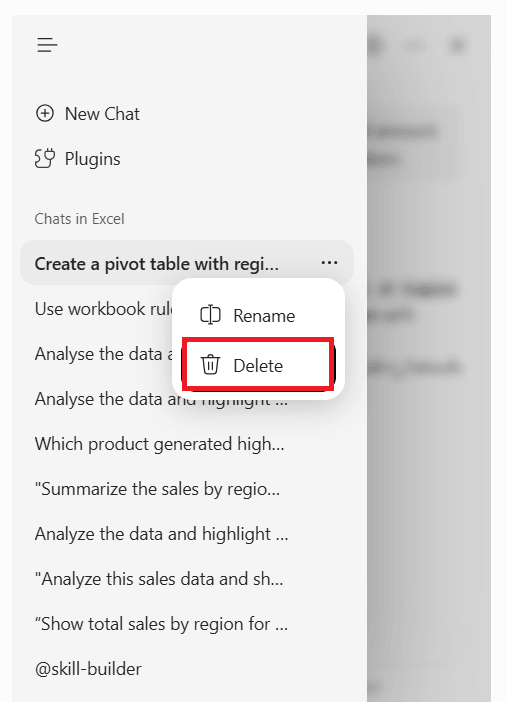
STEP 2: In the Copilot pane, open the Chat History by clicking on the menu icon.
STEP 3: Find the chat you want to remove from the history list.
STEP 4: Select the More Options menu and choose Delete.
Delete All Conversations
You can delete your Copilot activity history through your Microsoft account:
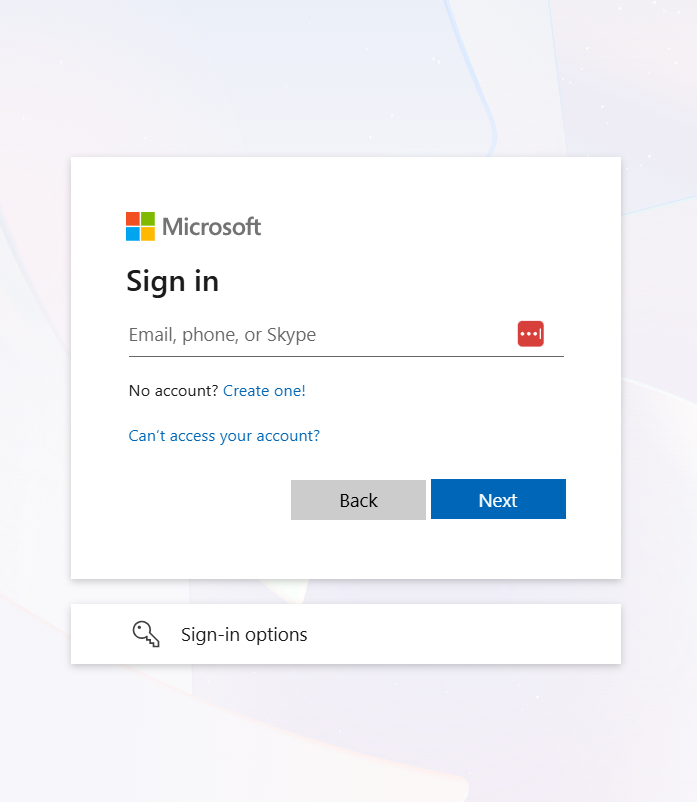
STEP 1: Sign in to the My Account portal.
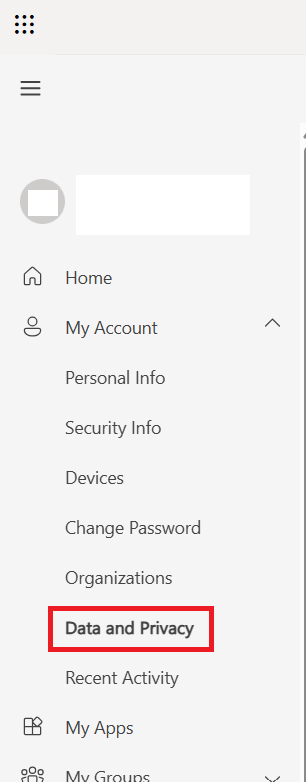
STEP 2: Go to My Account > Data and Privacy.
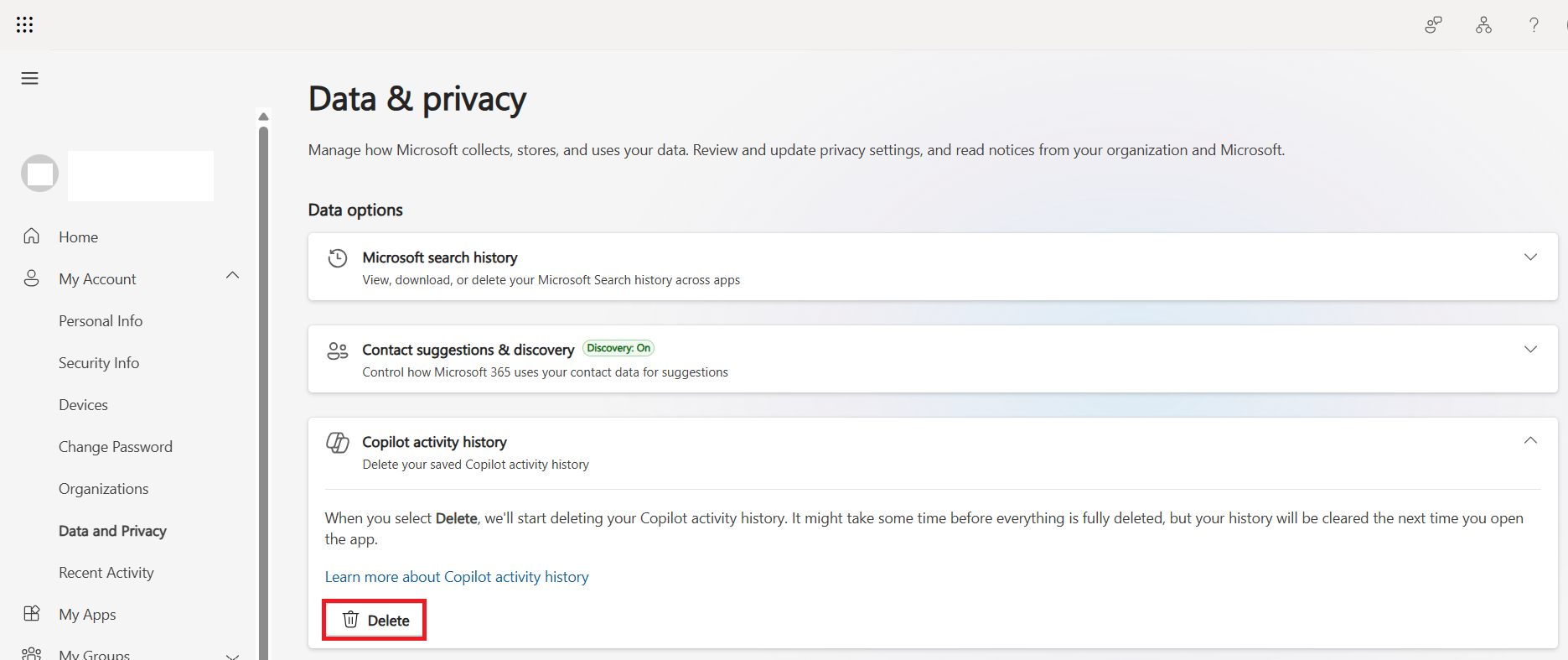
STEP 3: Under Data Options, select Copilot activity history and select Delete.
STEP 4: In the dialog, select the Microsoft Copilot checkbox and press Delete.
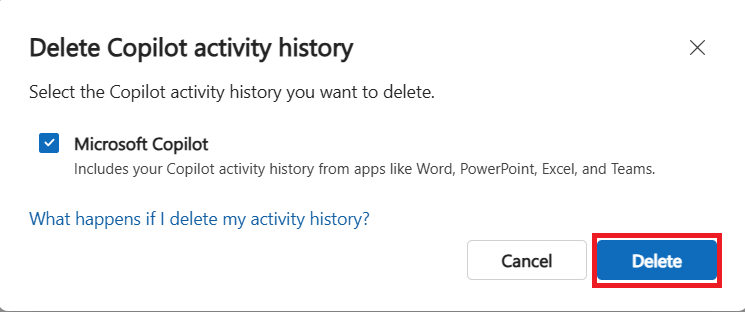
This will delete your Copilot chat history. It is important to remember that deleting the Copilot chat history will affect multiple Microsoft 365 apps, including Excel, Word, PowerPoint, and Outlook.
Things to Know Before Deleting
- The deleted chats cannot be recovered.
- If you delete a chat in Copilot, it does not affect the workbook data.
- Some organizations may have policies that require you to store the chats. Review the company policy before deleting.
FAQs
1. How to view previous conversations in Copilot?
- Open the Excel workbook
- Click on the Copilot button
- In the Copilot pane, click the Menu icon.
- Click on the chat you want to view.
2. Can I continue an old Copilot conversation?
Yes. You can open a previous conversation and enter a new prompt to continue working.
3. Does Excel automatically save Copilot chat history?
Copilot chat history is available when the feature is supported and enabled for your account.
4. Can I reuse a Copilot prompt in another workbook?
Yes. You can copy a previous prompt and paste it into a new Copilot conversation.
5. Can I delete individual Copilot conversations in Excel?
No. Microsoft currently does not support deleting individual conversations from the Excel chat history list.

John Michaloudis is a former accountant and finance analyst at General Electric, a Microsoft MVP since 2020, an Amazon #1 bestselling author of 4 Microsoft Excel books and teacher of Microsoft Excel & Office over at his flagship MyExcelOnline Academy Online Course.

 30 Days - Full Access