Free Practice Workbook
Microsoft Copilot analyses data, spots trends, creates charts, summarizes information, and more. The quality of Copilot’s results depends on how you organize your data. Excel Tables make it easier for Copilot to understand your data. In this article, you will learn why Copilot works better with Excel Tables.
Key Takeaways:
- Excel Tables help Copilot understand your data structure.
- New rows are automatically included in the table.
- Copilot can generate formulas using structured references.
- Clear column headers help Copilot analyze data accurately.
- Always review the formulas and results generated by Copilot.
Table of Contents
Introduction to Excel Table
What is an Excel table?
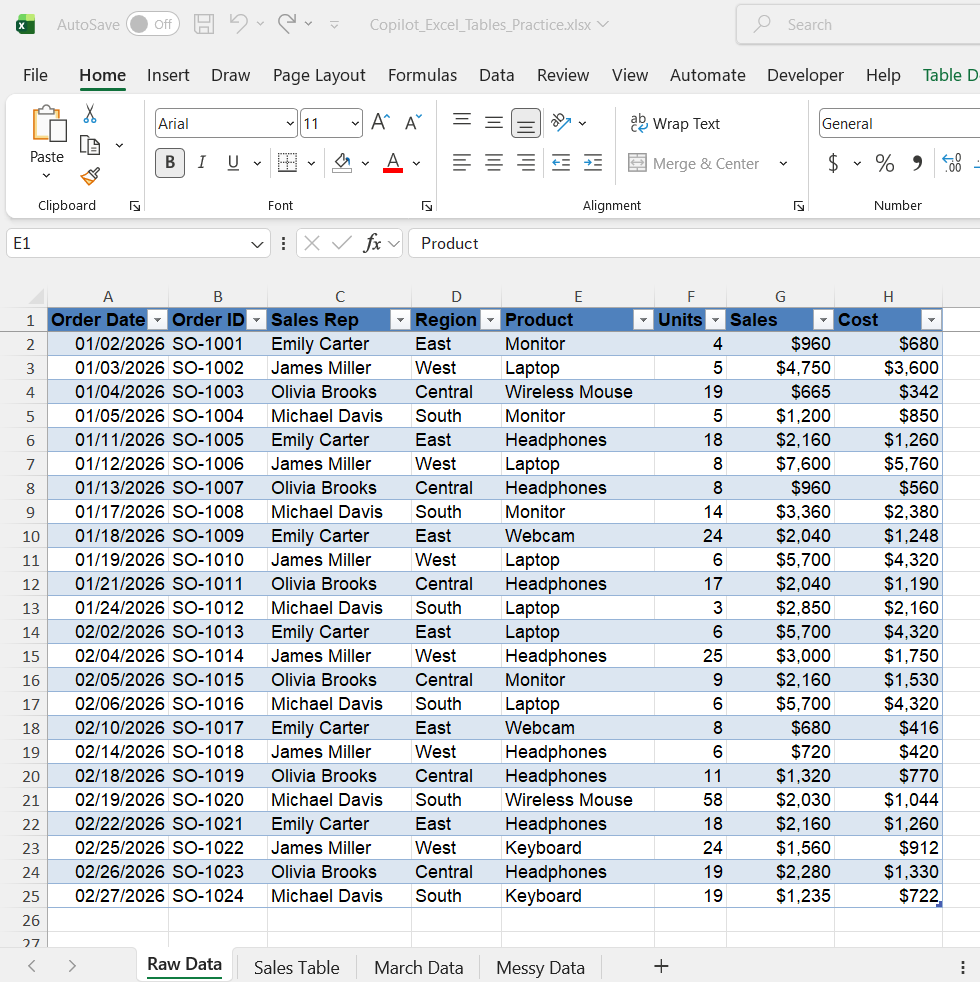
An Excel table is a range of data that allows you to organize, filter, manage, and analyze information easily. If you convert data into a table, it allows automatic formatting, filters, structured references, and automatic formula expansion.
Here is an example of an Excel table:
How to Insert an Excel Table
Follow the steps below to convert data into a table:
STEP 1: Select the data.
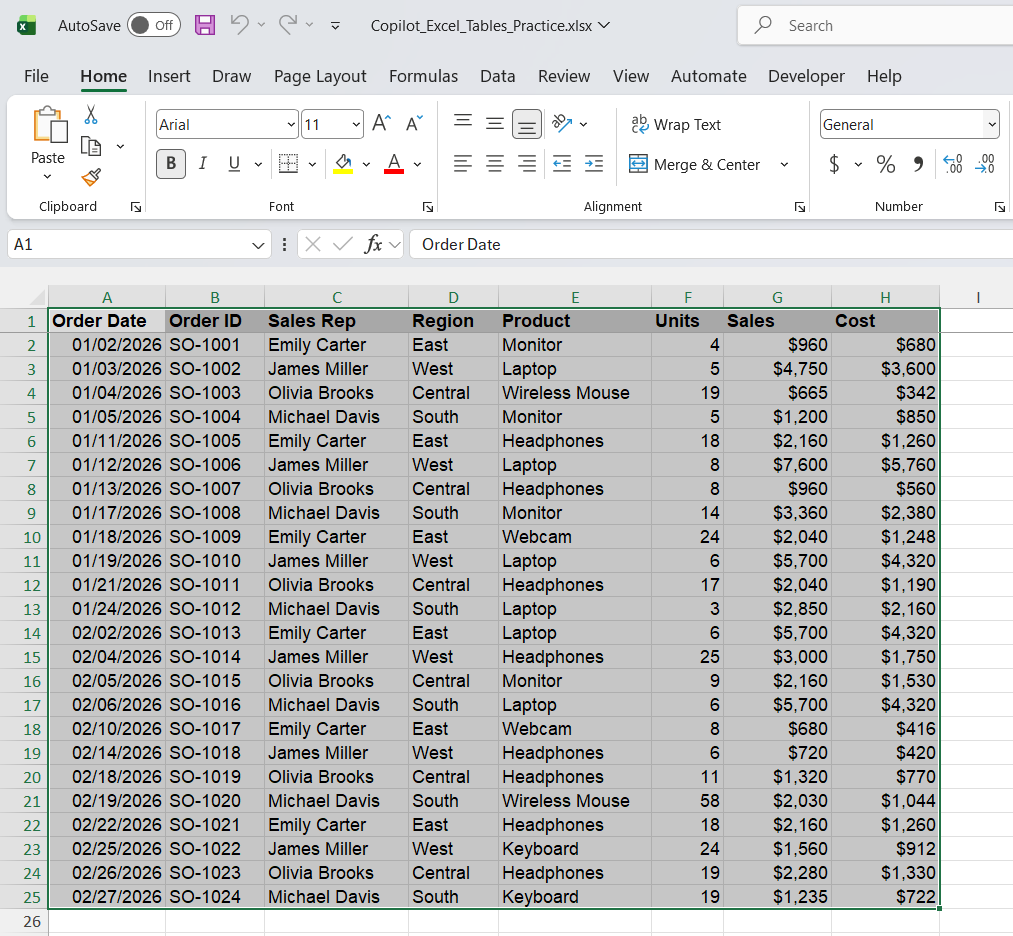
STEP 2: Press Ctrl + T.
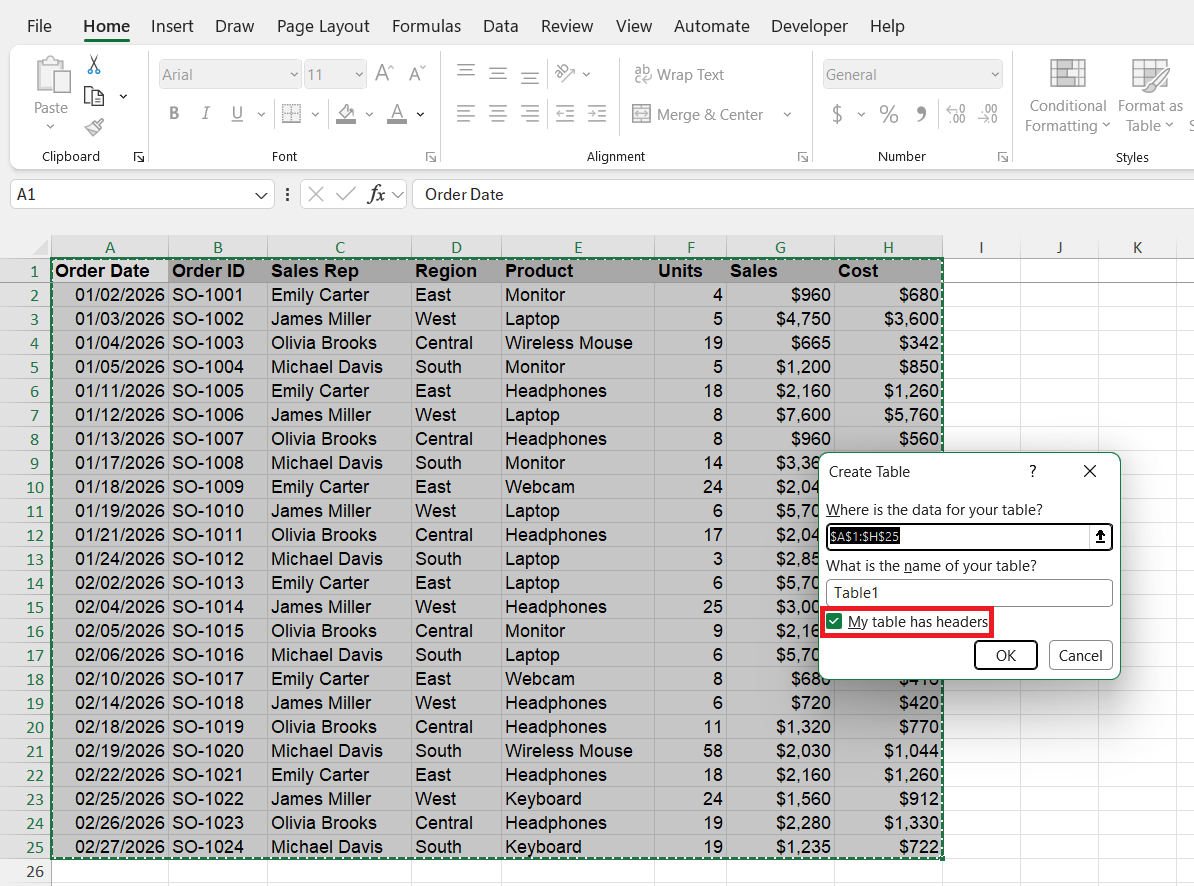
STEP 3: Check the My table has headers option.
STEP 4: Click OK.
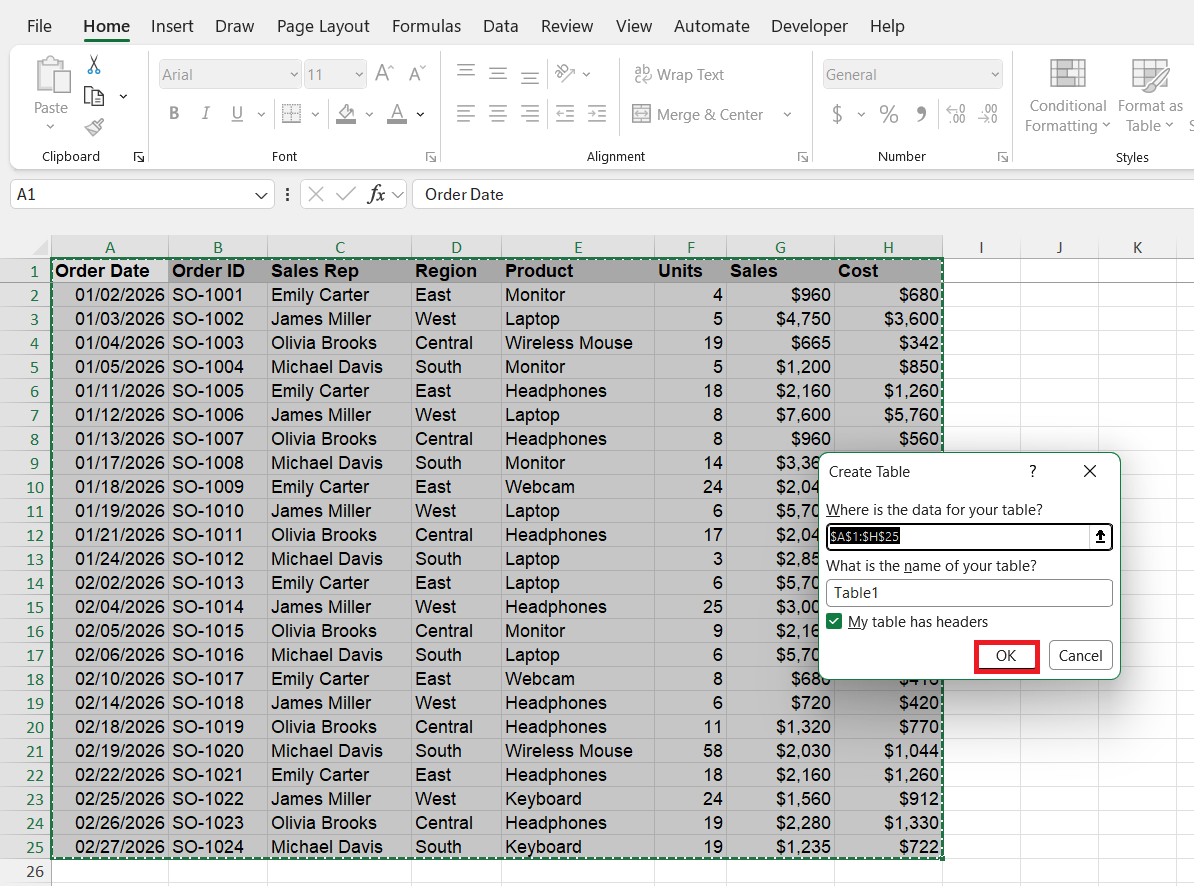
The Excel table is ready!
Why Copilot Works Better with Excel Tables?
1. Copilot Can Understand Your Data Structure
If you convert your data into an Excel table, it will have clear headings for each column. This will help Copilot understand which column you are referring to in the prompt. For example, if your table contains columns such as Product, Region, Sales, and Cost, Copilot can use these headers to understand your data.
You can ask Copilot:
“Summarize the sales by region and identify the most profitable product.”
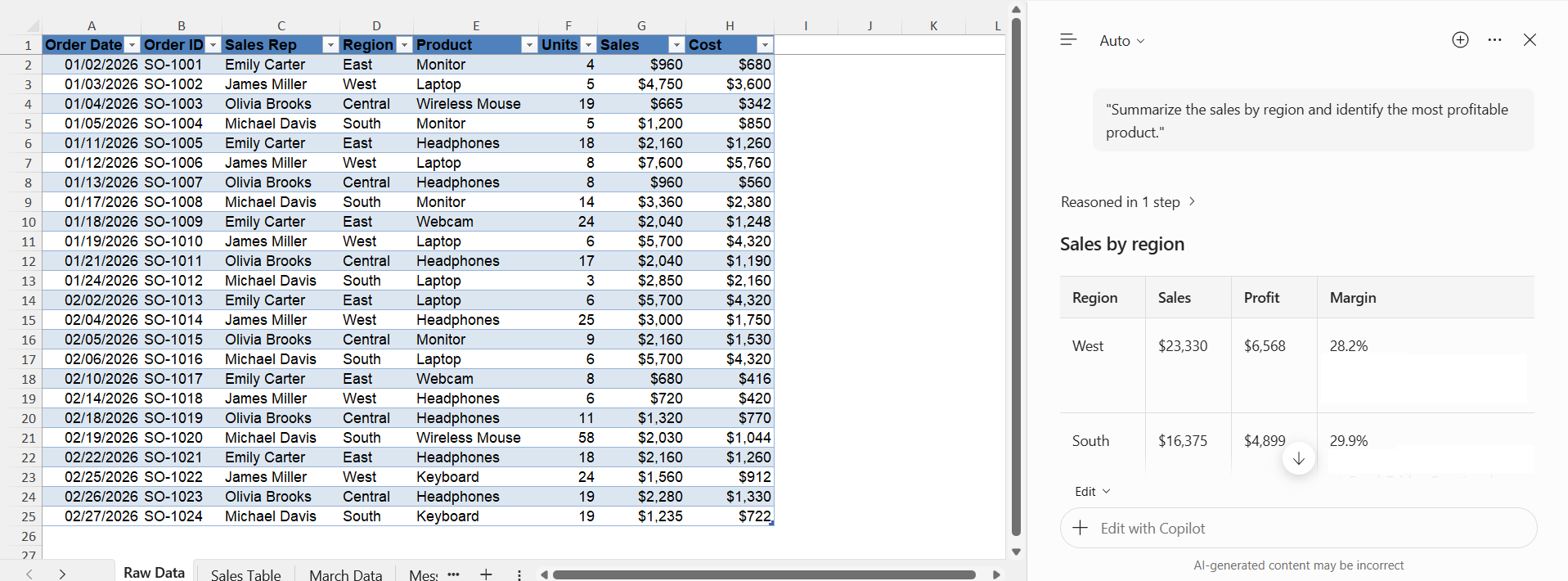
Copilot can use the table structure to analyze the relevant columns.
2. New Data Is Automatically Included
The benefit of using a table is that when you add new data, it will automatically be added to the existing table. For example, suppose you have sales data for the months of January and February in a table format. When you add the data for the month of March, you can use the same prompt to analyse the data.
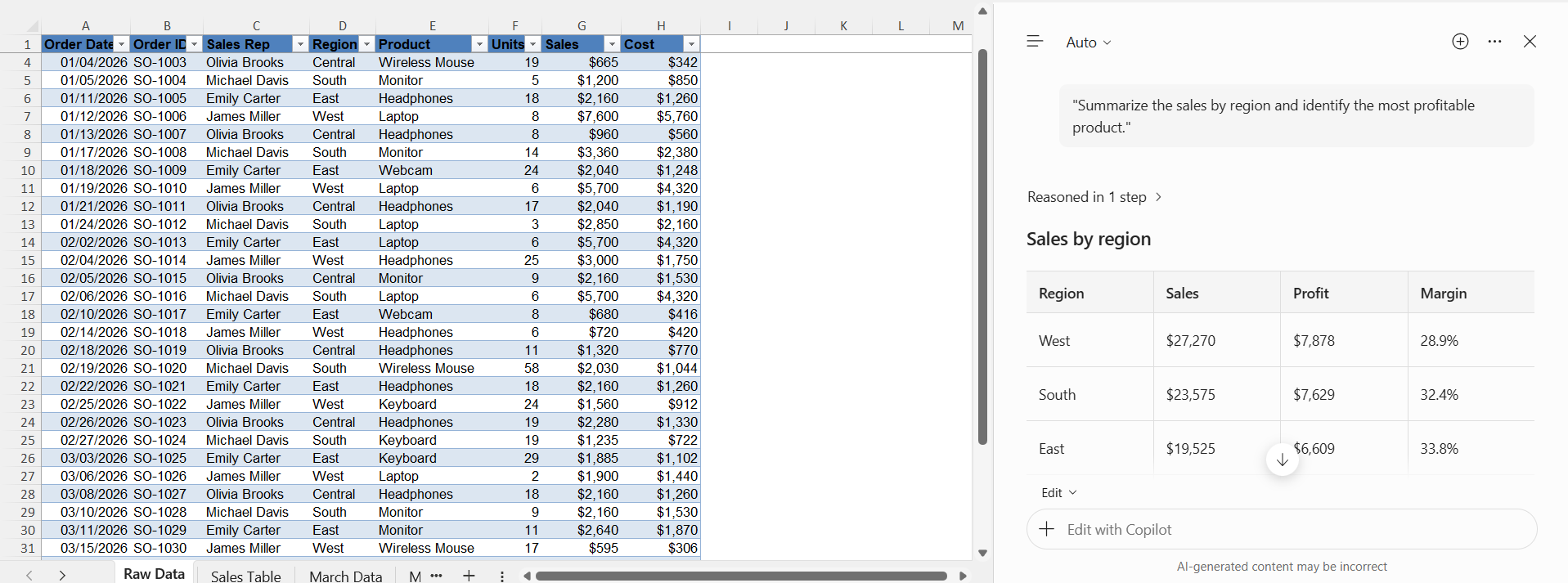
Copilot can analyze the updated table and provide results based on the new data.
3. Copilot Can Generate Formulas More Easily
Copilot can help you create formulas based on your data. Excel Tables make this process easier because they use structured references. You can ask Copilot:
“Add a Profit column that calculates the difference between Sales and Cost.”
Copilot can generate a formula such as:
=[@Sales]-[@Cost]
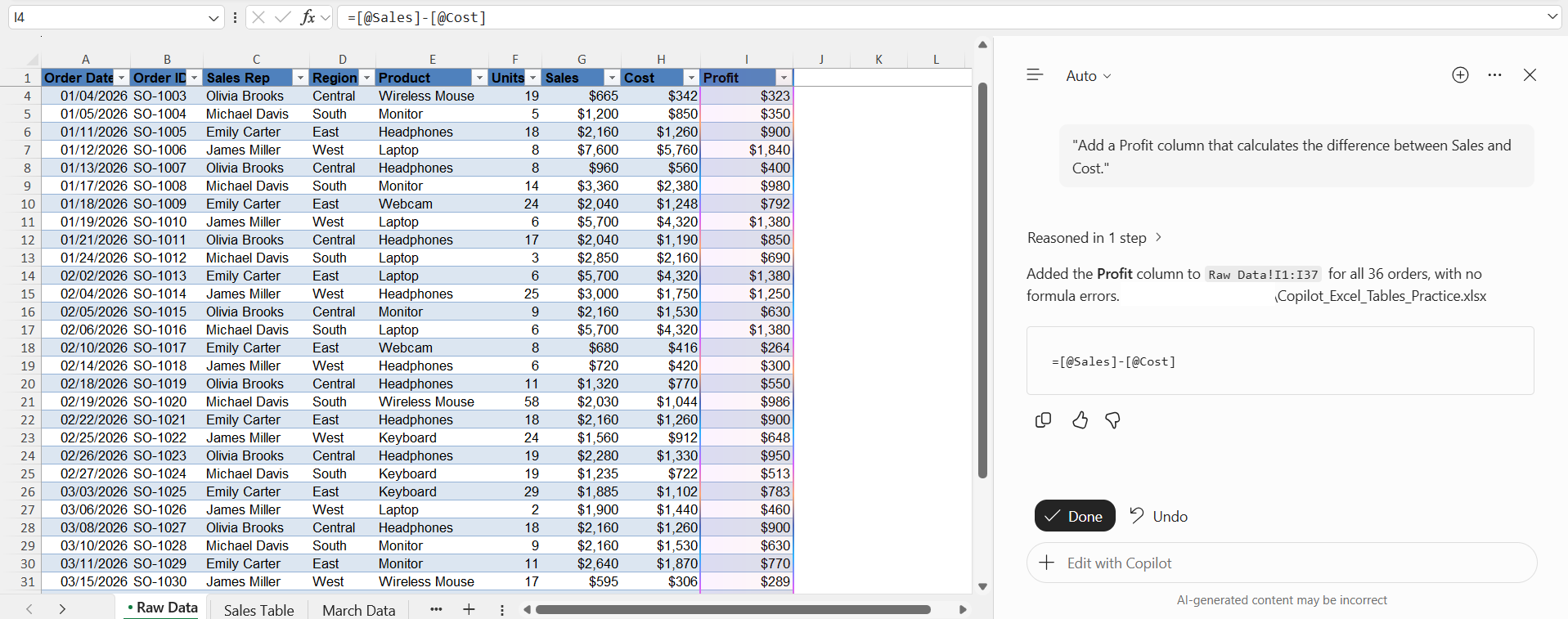
This formula uses the column names instead of regular cell references. When you apply this formula to the table, it automatically applies it to all the rows of the calculated column.
Tips for Using Copilot with Excel Tables
- Use descriptive names for column headers like Sales Amount, Order Date, etc., instead of generic headers such as Column1 or Column2.
- Make sure to remove blank rows in the table.
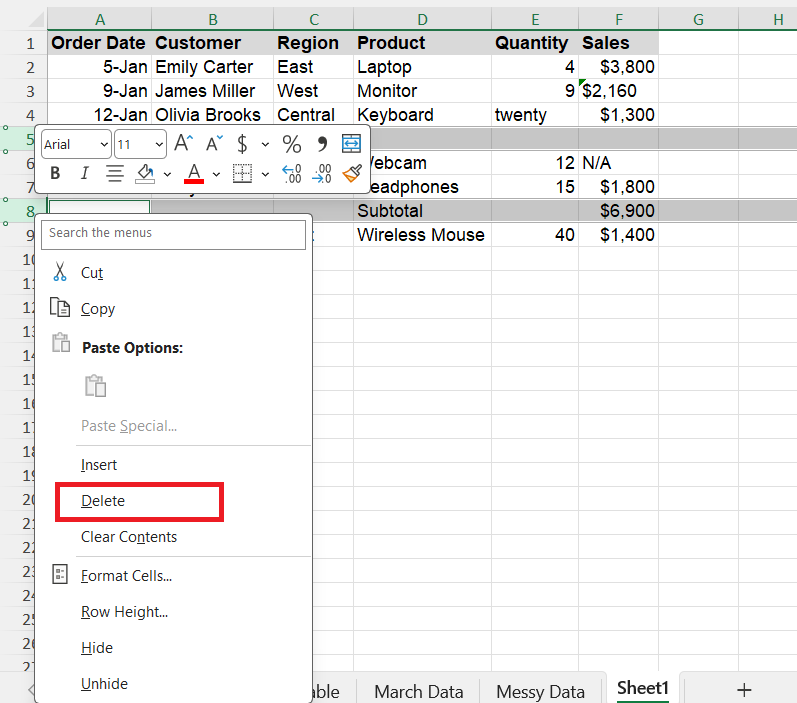
- Do not date, text, numbers, etc. in the same column. Use consistent data types.
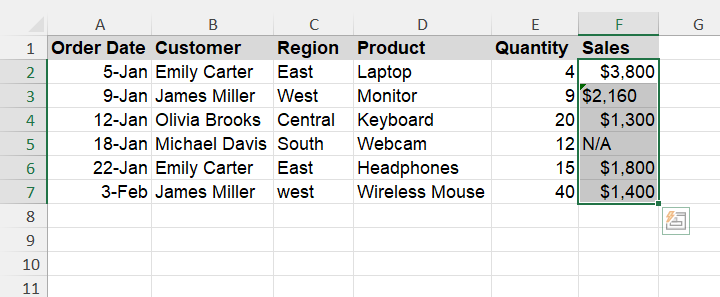
- Clearly explain what you want Copilot to calculate or analyze.
- Check the formulas and calculations generated by Copilot.
FAQs
1. Why should I use Excel Tables with Copilot?
Excel Tables help Copilot understand, analyze, and work with your data more easily.
2. Can Copilot work without Excel Tables?
Yes. Copilot can also work with supported data ranges.
3. How do I convert data into an Excel Table?
Select your data and press Ctrl + T. Then click OK.
4. Does Copilot automatically include new rows in an Excel Table?
Yes. New rows added to the table are automatically included in its data range.
5. Can Copilot create formulas in Excel Tables?
Yes. Copilot can generate formulas using structured references and table column names.

John Michaloudis is a former accountant and finance analyst at General Electric, a Microsoft MVP since 2020, an Amazon #1 bestselling author of 4 Microsoft Excel books and teacher of Microsoft Excel & Office over at his flagship MyExcelOnline Academy Online Course.

 30 Days - Full Access