Free Practice Workbook
If you want to calculate the sum or count the rows that meet certain criteria, you can use the SUMIFS and COUNTIFS formulas. With Copilot, you do not need to memorize the formula syntax or manually select the columns. In this article, you will learn how to create SUMIFS and COUNTIFS formula with Copilot in Excel.
Key Takeaways:
- SUMIFS adds values that meet multiple conditions in a dataset.
- COUNTIFS counts records that match multiple criteria.
- Copilot can generate SUMIFS and COUNTIFS formulas using simple prompts.
- Convert your dataset into an Excel Table and use clear column headings.
- Always review the generated formulas to verify the ranges and criteria.
Table of Contents
Introduction to SUMIFS and COUNTIFS Formulas
SUMIFS Formula
The SUMIFS function in Excel is used to add values from cells that meet multiple conditions. Instead of checking each row manually, you can use SUMIFS to calculate the total based on multiple conditions. The syntax of this formula is:
=SUMIFS(sum_range,criteria_range1,criteria1,criteria_range2,criteria2…)
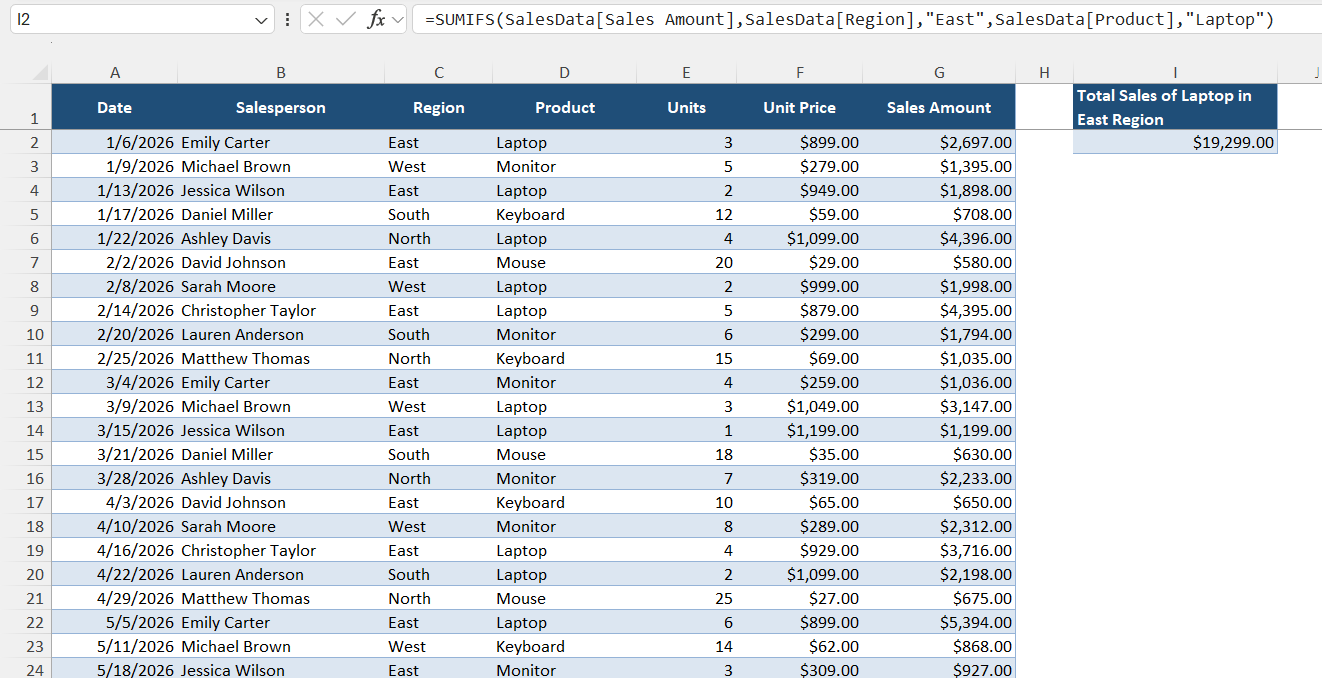
- Sum_Range (required) – The range of cells to sum.
- Criteria_Range1 (required) – The range that is tested using Criteria1.
- Criteria1 (required) – The criteria that define which cells in Criteria_range1 will be added.
- Criteria_Range2, Criteria2, … (optional) – Additional ranges and their associated criteria.
COUNTIFS Formula
The COUNTIFS formula is used to count cells that match two or more conditions.
=COUNTIFS(range1, criteria1,[range2], [criteria2],…)
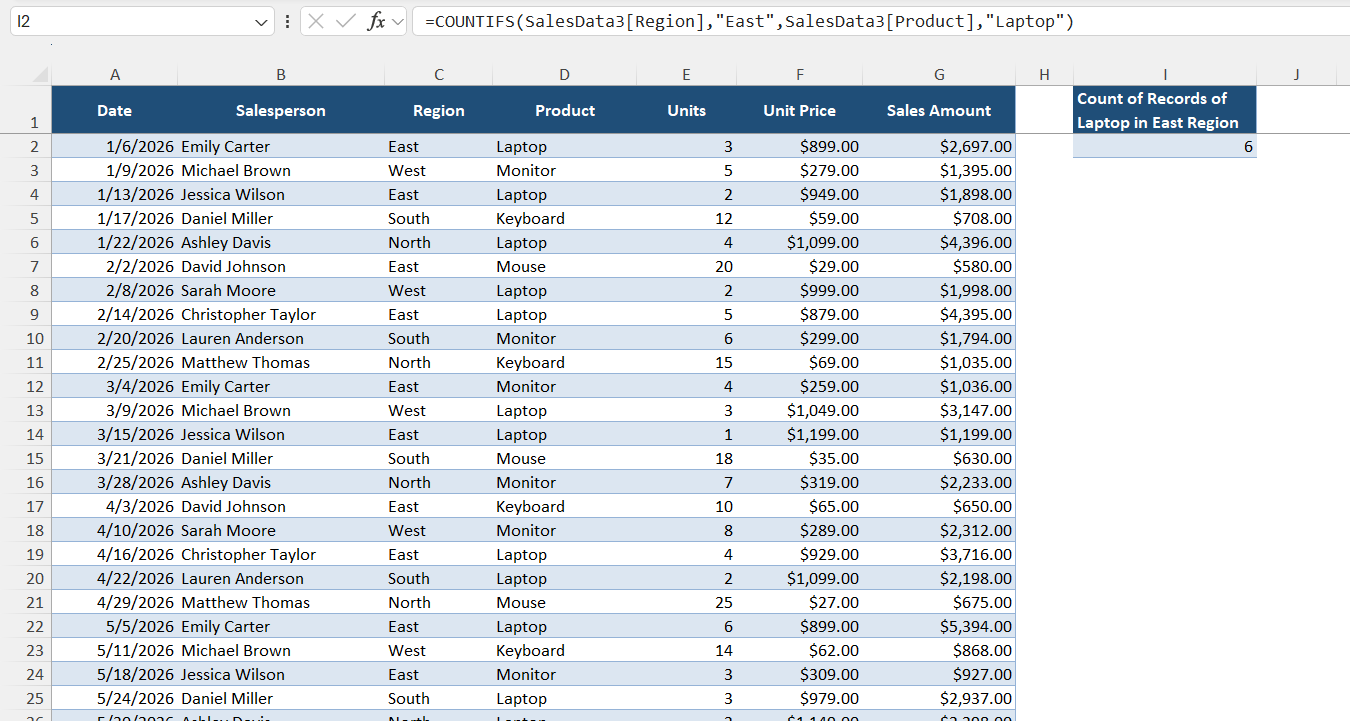
How to Create a SUMIFS Formula with Copilot
Suppose you have a sales dataset and want to calculate total sales for the East region for laptops.
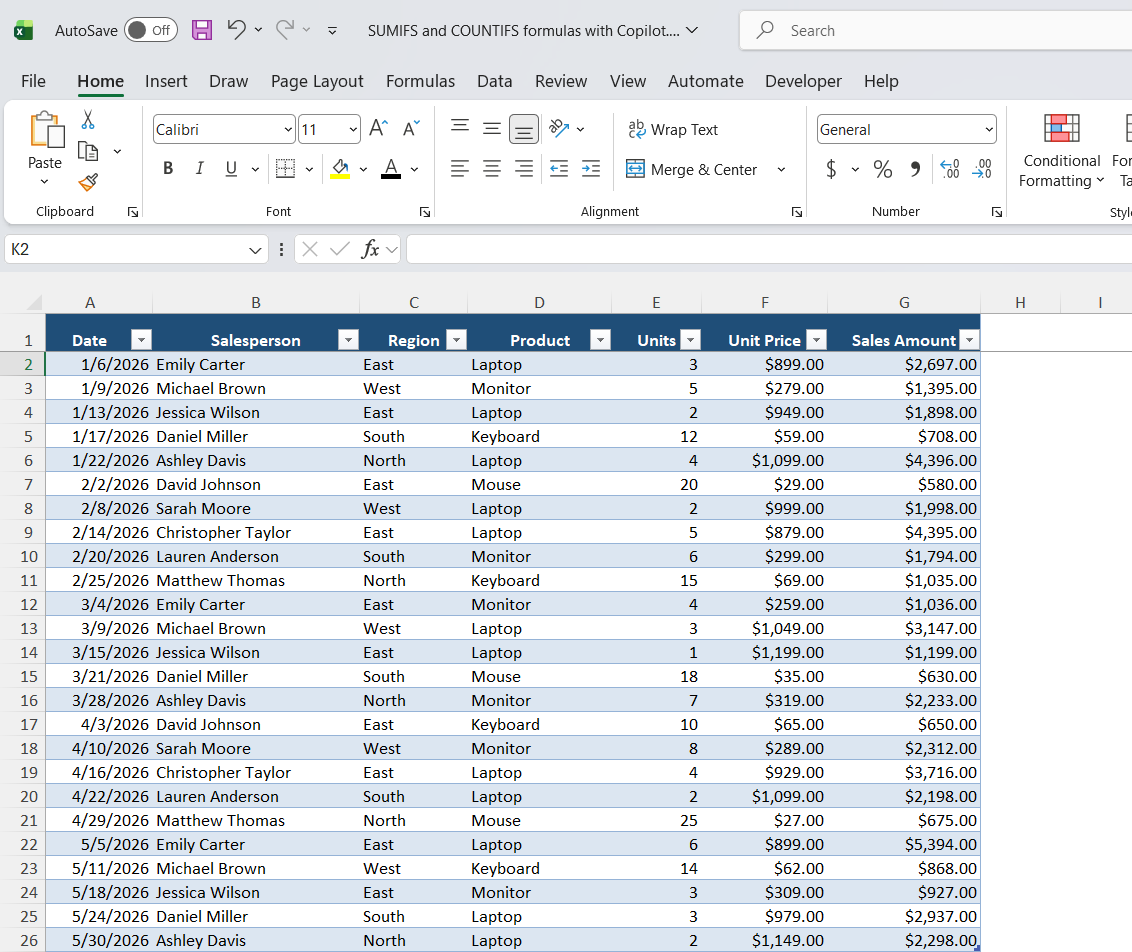
Follow these steps to calculate the total sales:
STEP 1: Open your Excel workbook.
STEP 2: Press Ctrl + T to convert the data into a table.
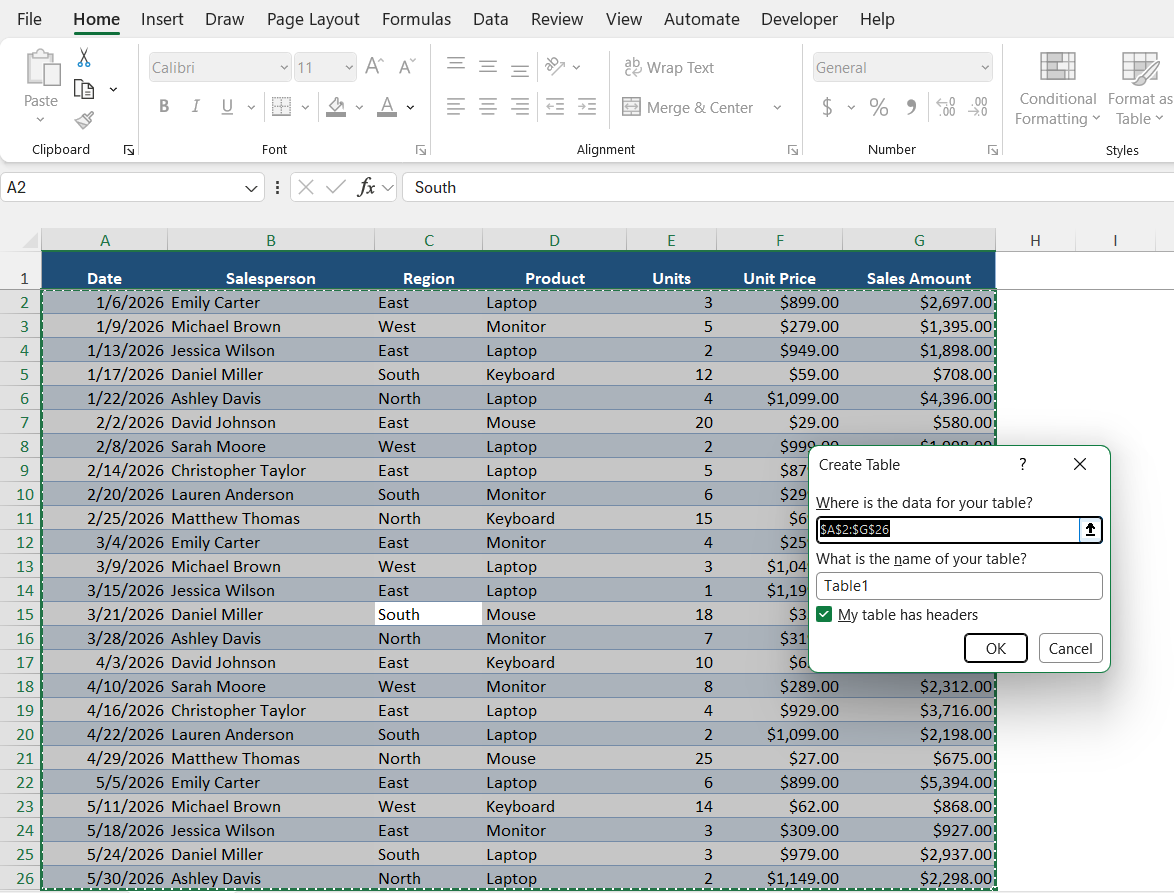
STEP 3: Click on the Copilot button.
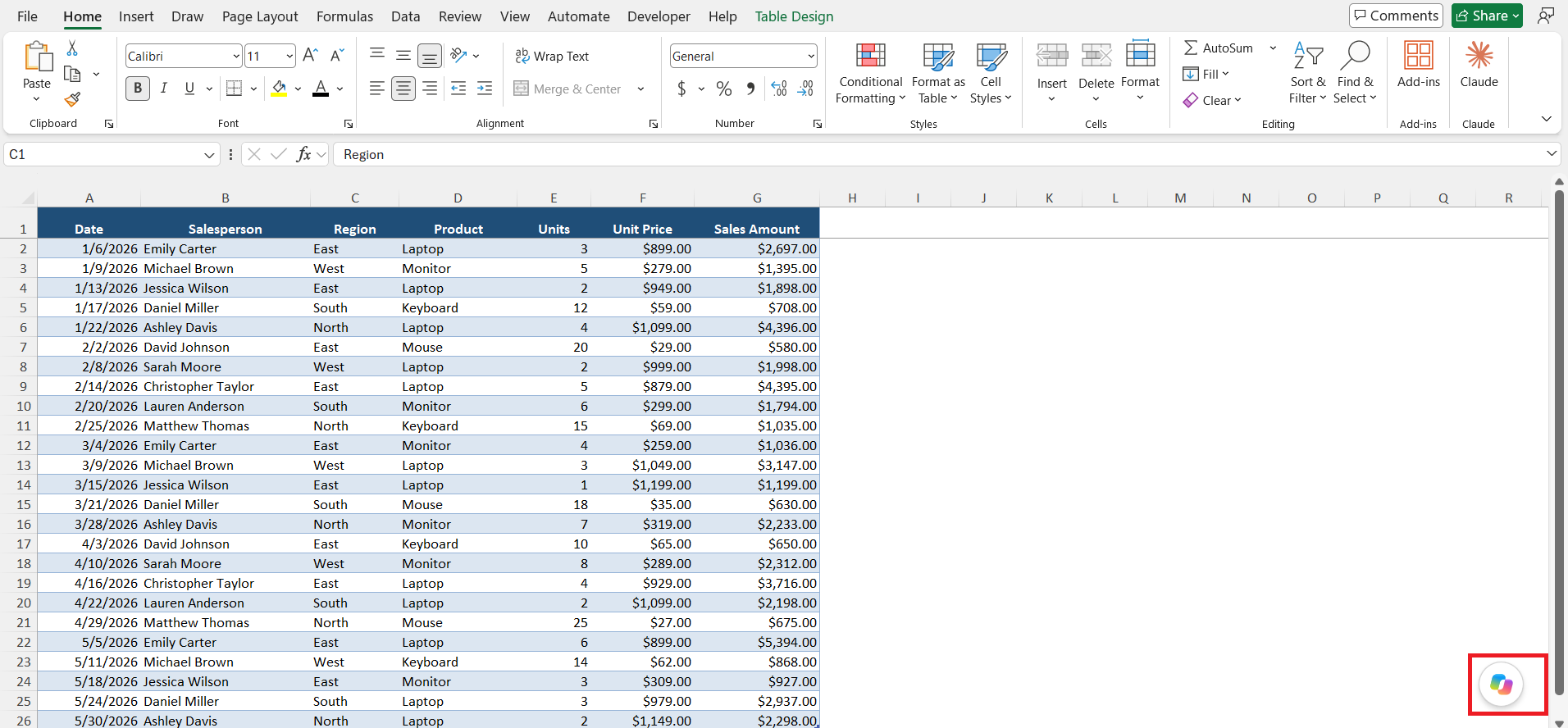
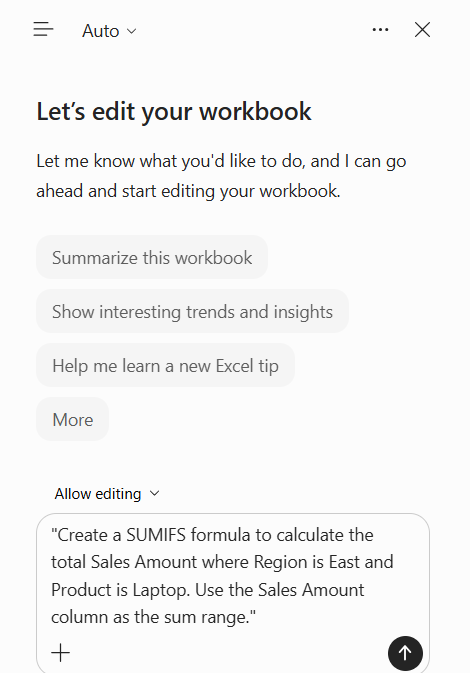
STEP 4: Enter the following prompt:
“Create a SUMIFS formula to calculate the total Sales Amount where Region is East and Product is Laptop. Use the Sales Amount column as the sum range.”
STEP 5: Copilot will check the column headings and suggest a SUMIFS formula using the specified conditions.
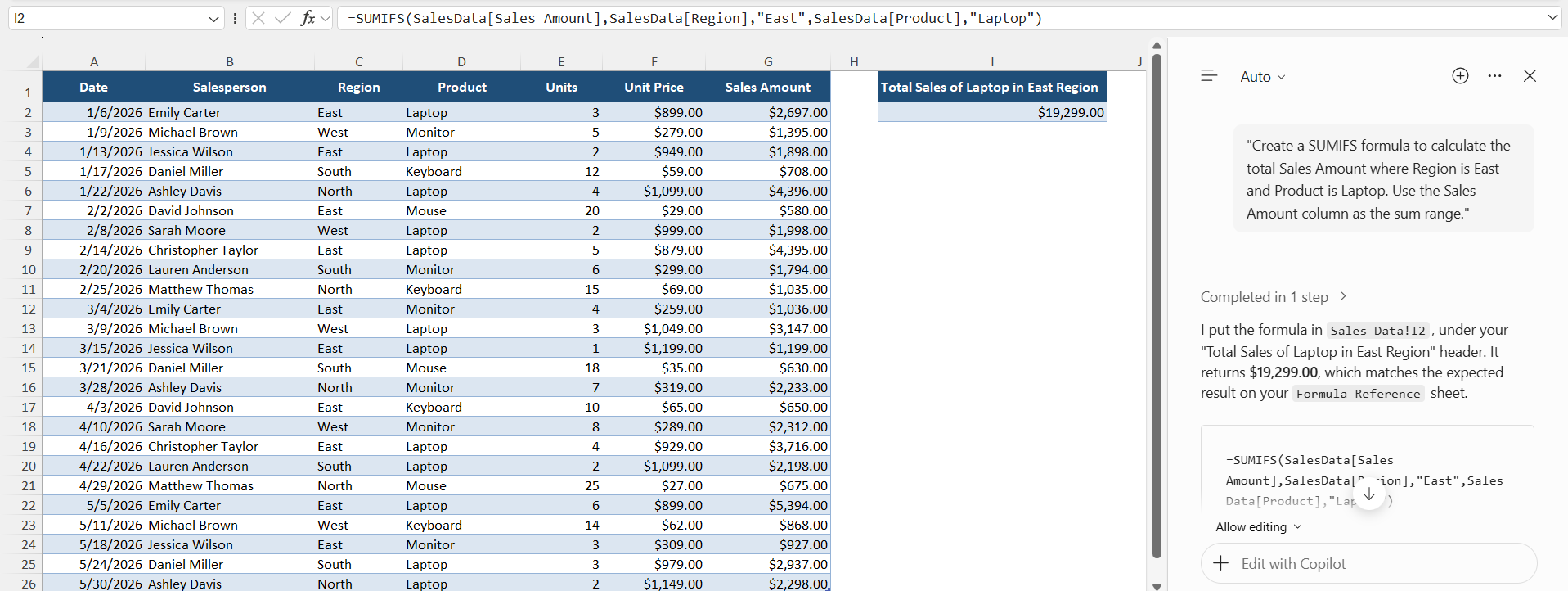
Review the formula and press Done.
How to Create a COUNTIFS Formula with Copilot
Suppose you have a sales dataset and want to count the sales records of laptops in the East region. Follow these steps to count the matching sales records:
STEP 1: Open your Excel workbook.
STEP 2: Press Ctrl + T to convert the data into a table.
STEP 3: Click on the Copilot button.
STEP 4: Enter the following prompt:
“Create a COUNTIFS formula to count the sales records where Region is East and Product is Laptop.”
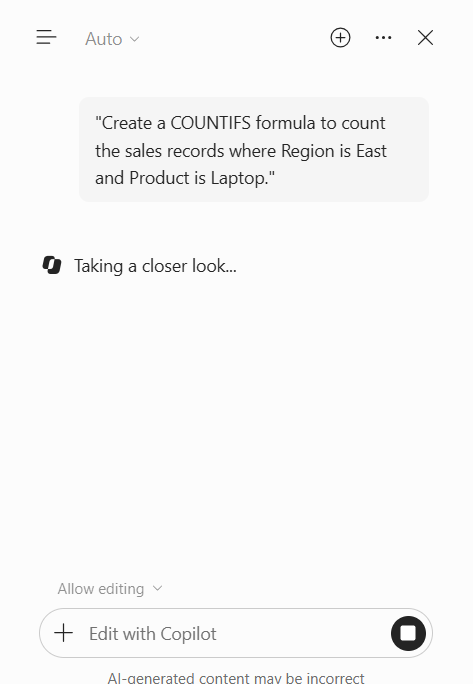
STEP 5: Copilot will check the column headings and suggest a COUNTIFS formula to count the matching records.
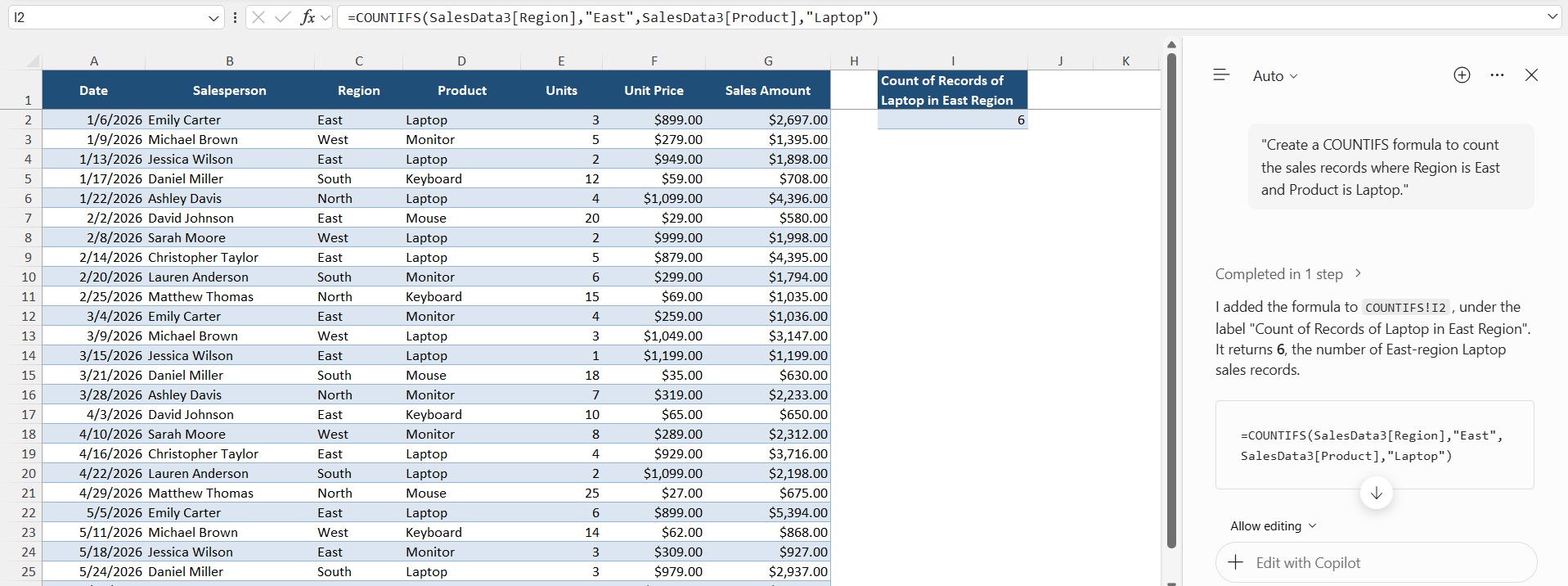
Review the formula and press Done.
Tips & Tricks
- Make sure to convert the data into a table.
- Use clear column headings to help Copilot identify the data correctly.
- Mention the criteria properly in the Copilot prompt.
- Use terms such as greater than, less than, and equal to when describing numerical conditions.
- Check the ranges, criteria, and calculations before using the result.
FAQs
1. Can Copilot create SUMIFS formulas in Excel?
Yes. You can provide the conditions you want to apply in the Copilot prompt, and it will create the SUMIFS formula in Excel.
2. Can Copilot create COUNTIFS formulas in Excel?
Yes. You can ask Copilot to create COUNTIFS formulas to count records that meet multiple conditions.
3. Can Copilot create SUMIFS formulas with multiple criteria?
Yes. You can specify multiple conditions, such as region, product, salesperson, or sales amount, in your prompt.
4. Do I need to convert my data into an Excel Table before using Copilot?
Converting your data into an Excel Table helps Copilot identify column headings and data ranges more easily.
5. Can I modify a SUMIFS or COUNTIFS formula generated by Copilot?
Yes. You can ask Copilot to add new conditions, change existing criteria, or update the formula.

John Michaloudis is a former accountant and finance analyst at General Electric, a Microsoft MVP since 2020, an Amazon #1 bestselling author of 4 Microsoft Excel books and teacher of Microsoft Excel & Office over at his flagship MyExcelOnline Academy Online Course.

 30 Days - Full Access