Free Practice Workbook
Microsoft Copilot can be used to extract specific information from text in Excel. You can use it to get names, email addresses, phone numbers, and physical addresses from a data table. In this article, you will learn how to extract text with Copilot in Excel.
Key Takeaways:
- Copilot can extract names, emails, and addresses from text.
- You can extract customer names into a separate column.
- Copilot can identify and extract email addresses.
- You can extract physical addresses using simple prompts.
- Always review the extracted data for errors.
Table of Contents
Introduction to Data Extraction
Suppose you have a column containing details related to the customers. You can extract names, emails, and addresses manually, but it will take a lot of time. But you can use Copilot in Excel to extract specific details from your data. For example:
John Smith contacted our sales team. His email address is [email protected]. He lives at 25 Park Street, New York, NY 10001.
You can ask Copilot to extract the name, email address, and physical address into separate columns.
How to Extract Text with Copilot
#1 – Extract Customer Name
STEP 1: Click the data in the worksheet and click the Copilot button.
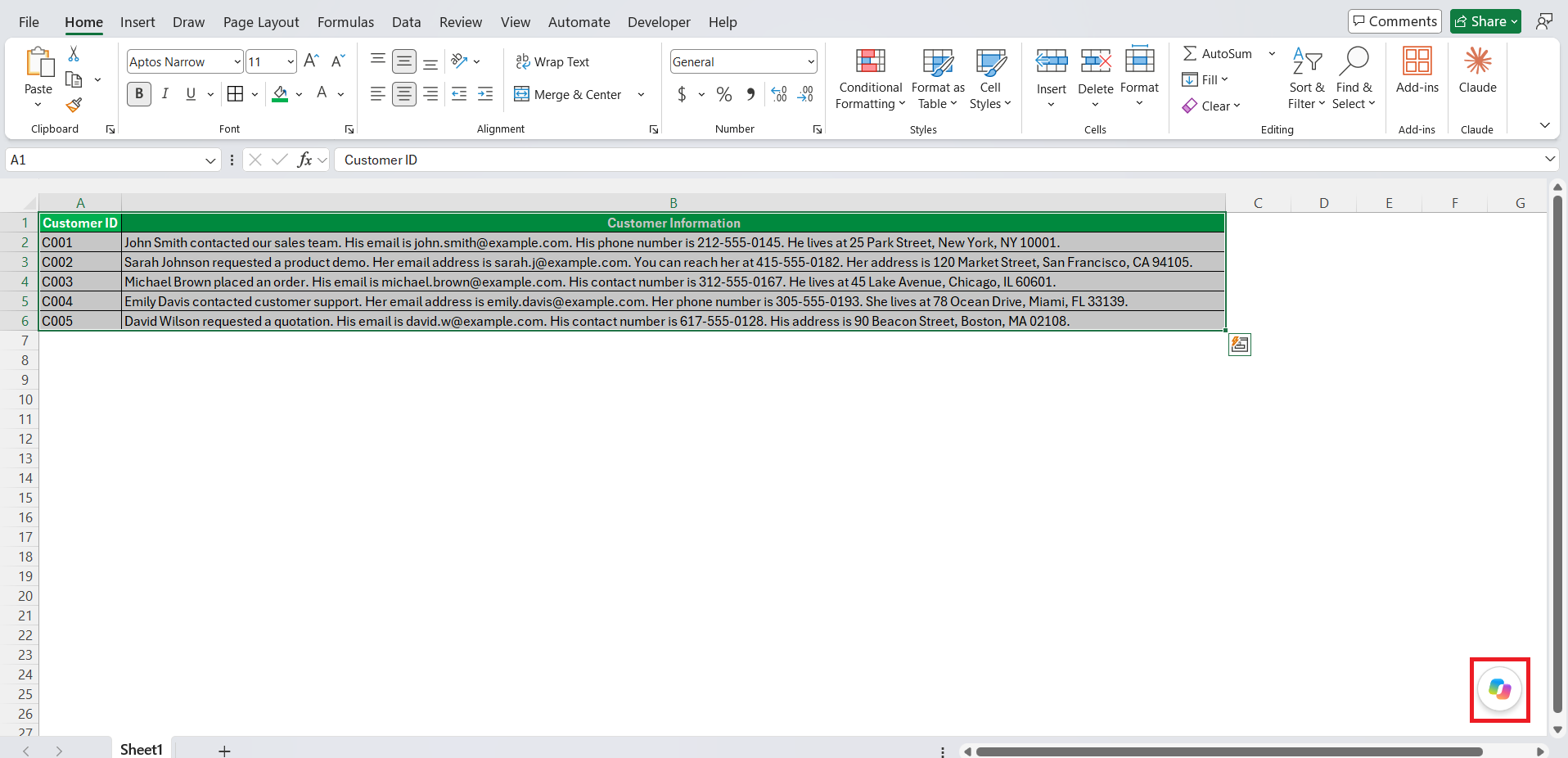
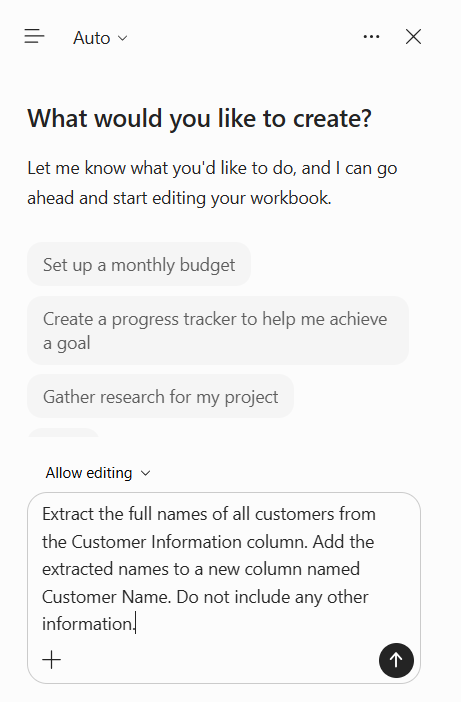
STEP 2: In the Copilot pane, enter the prompt:
“Extract the full names of all customers from the Customer Information column. Add the extracted names to a new column named Customer Name. Do not include any other information.”
STEP 3: Copilot will check the Customer Information column and return the names in a new column.
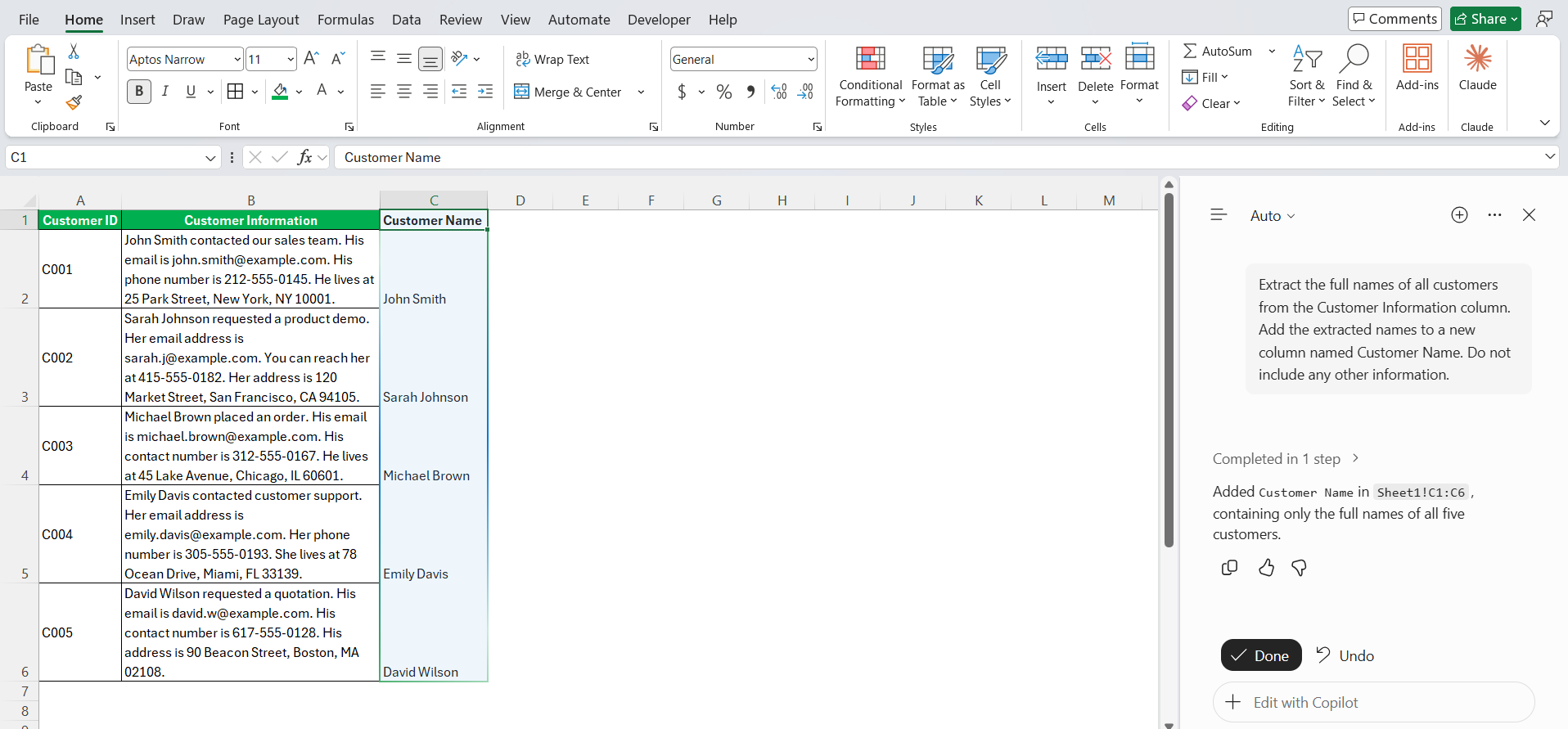
Review the results to make sure the names are extracted correctly.
#2 – Extract Email Address
Next, use Copilot to find the email addresses in the Customer Information column.
“Extract all email addresses from the Customer Information column. Add them to a new column named Email Address. If an email address is missing, leave the cell blank.”
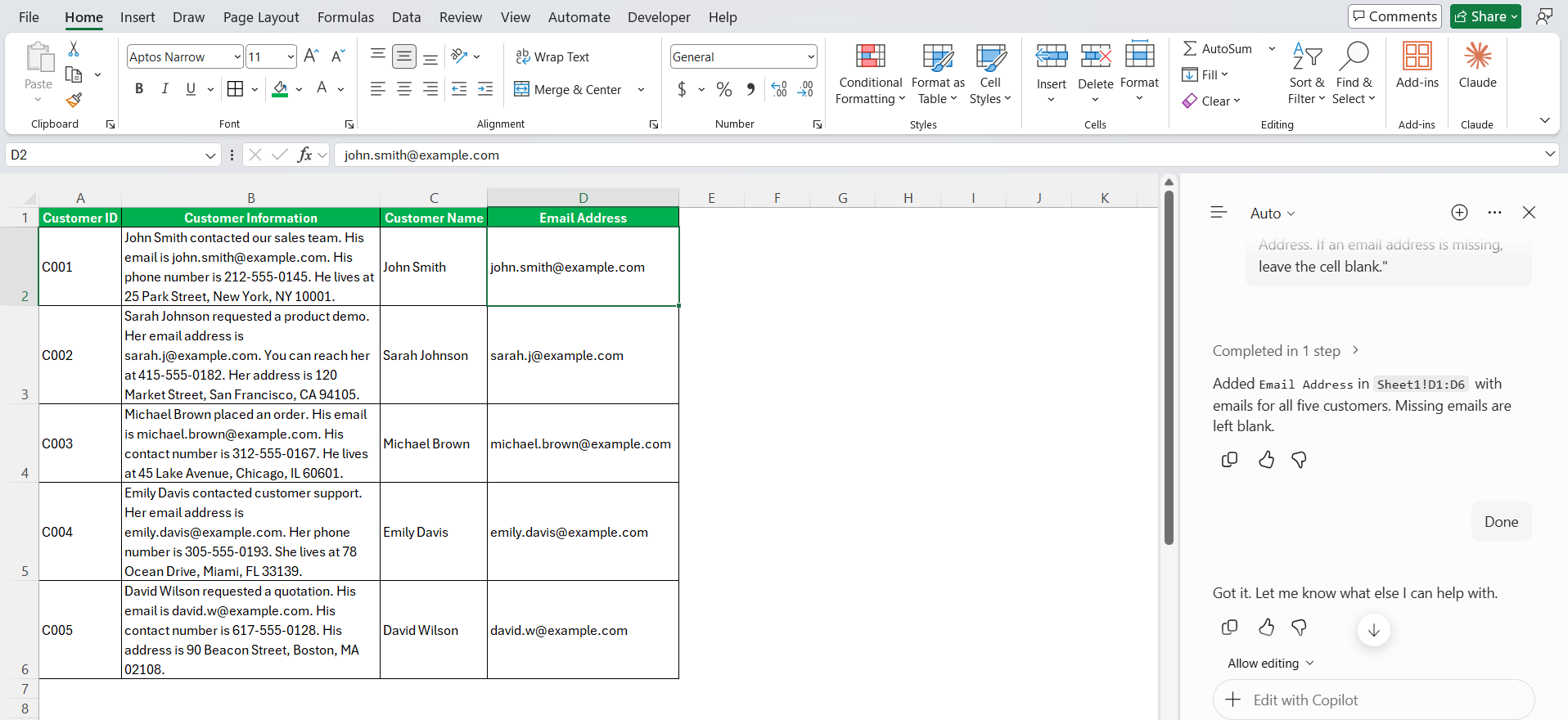
#3 – Extract Physical Address
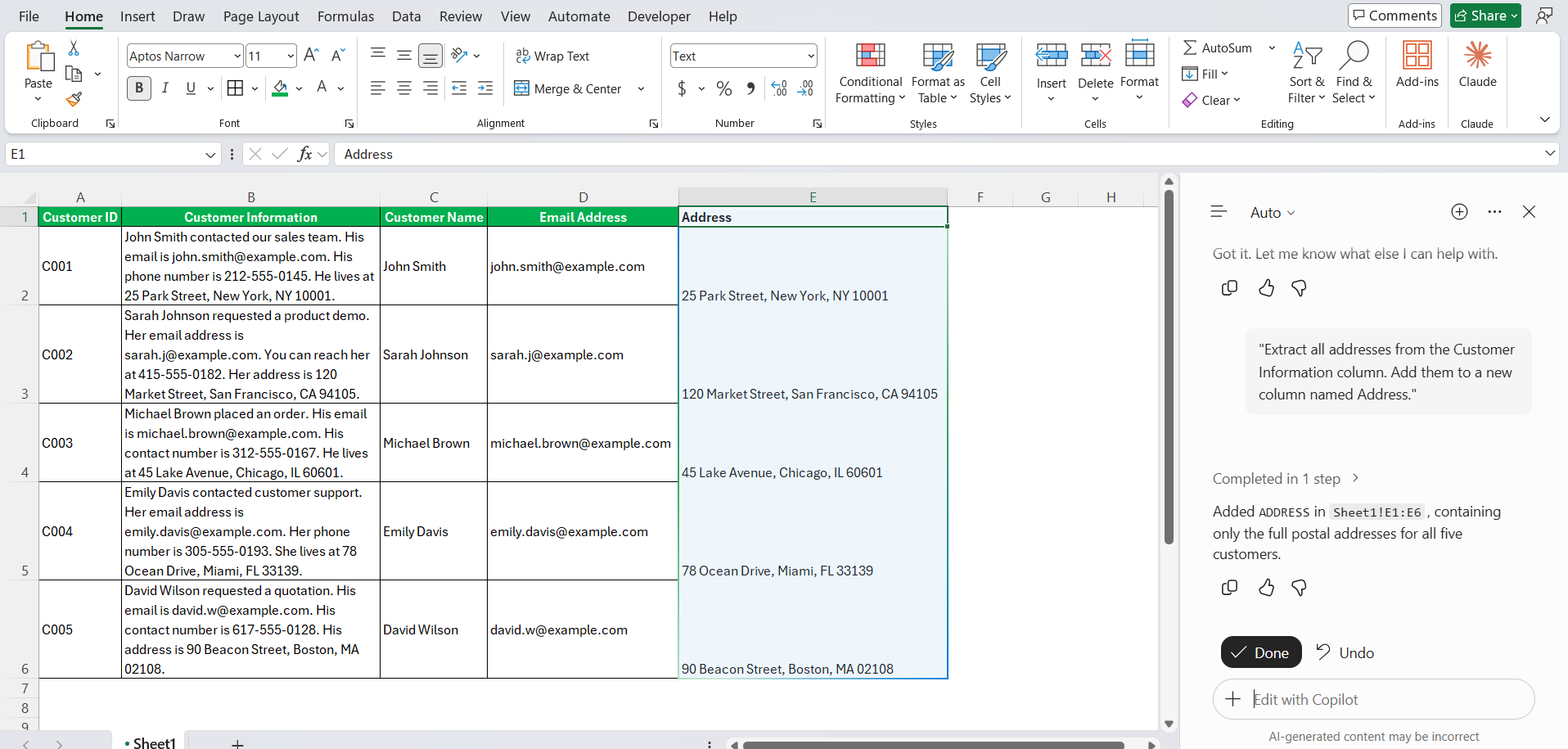
You can also extract the complete mailing addresses and place them in a separate column.
“Extract all addresses from the Customer Information column. Add them to a new column named Address.”
#4 – Extract Multiple Details at Once
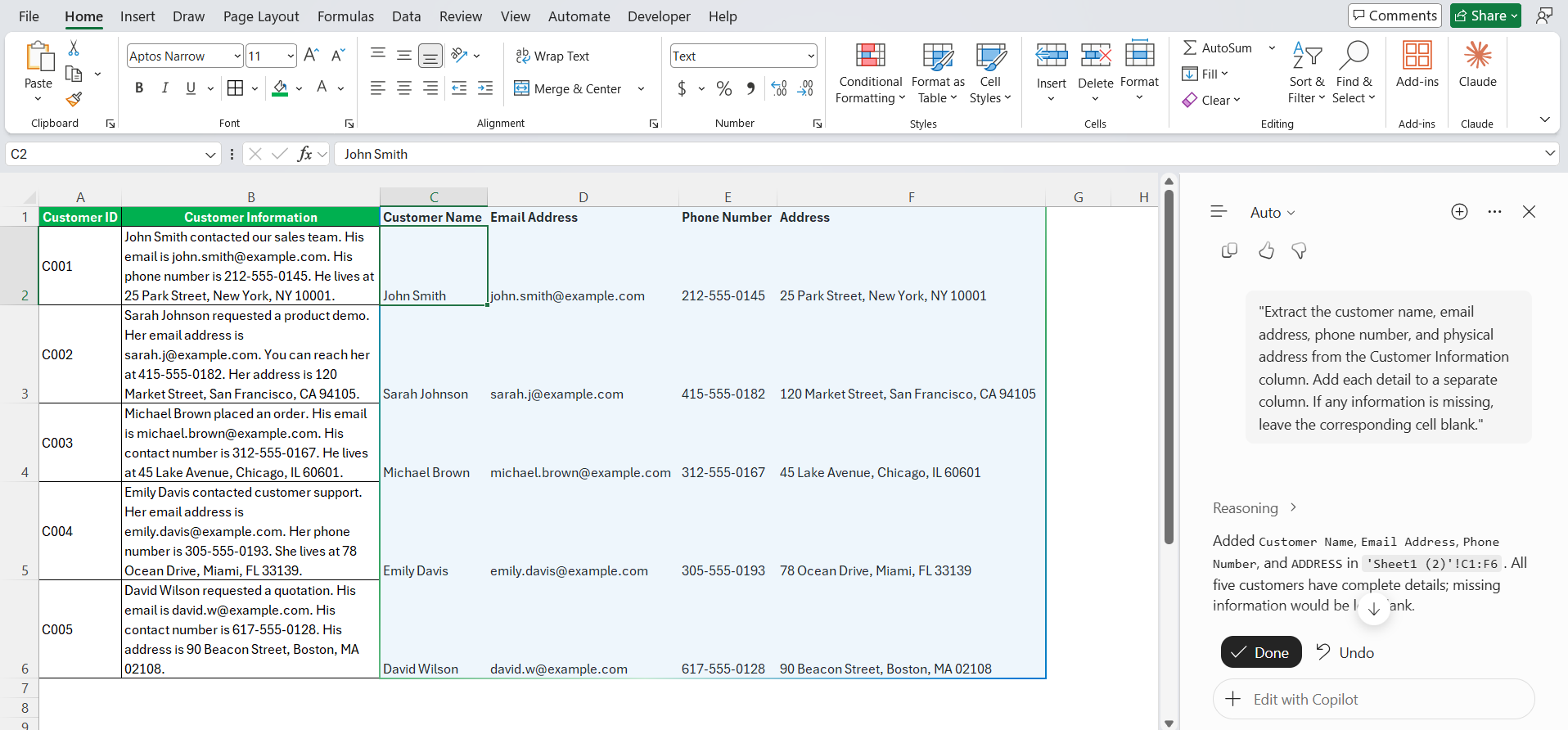
When a customer list contains different details in the same column, extracting them one by one can take time. Instead, you can ask Copilot to identify all the required information and place it in separate columns. For example, suppose the Customer Information column contains customer names, contact details, and addresses in the same cell. You can use the following prompt:
“Extract the customer name, email address, phone number, and physical address from the Customer Information column. Add each detail to a separate column. If any information is missing, leave the corresponding cell blank.”
Tips & Tricks
- Make sure each name matches the correct customer.
- Check that email addresses are complete and correctly spelled.
- Verify that street addresses, cities, states, and ZIP codes are included.
- Check for missing or duplicate information.
- Make sure Copilot has not mixed information between different rows.
Limitations of Using Copilot for Data Extraction
- Copilot may confuse a person’s name with a company name or another detail.
- Different address and email formats can affect extraction results.
- If the data is missing from the text, extracted information may contain errors.
FAQs
1. Can Copilot extract names from text in Excel?
Yes, Copilot can identify names and add them to a separate column.
2. Can Copilot extract email addresses from Excel data?
Yes, you can use a prompt to extract email addresses from text.
3. Can Copilot extract physical addresses?
Yes, Copilot can identify and separate physical addresses from text.
4. Can Copilot extract multiple details at once?
Yes, you can ask Copilot to extract names, emails, and addresses using one prompt.
5. Does Copilot always extract data accurately?
No, Copilot may make mistakes. Always review the extracted information.

John Michaloudis is a former accountant and finance analyst at General Electric, a Microsoft MVP since 2020, an Amazon #1 bestselling author of 4 Microsoft Excel books and teacher of Microsoft Excel & Office over at his flagship MyExcelOnline Academy Online Course.

 30 Days - Full Access