Free Practice Workbook
If you are unable to recall the formula syntax or cannot decide which formula to use, you can take the help of Copilot in Excel for the web. It can suggest a complete formula based on the data in your worksheet. In this article, you will learn all about formula completion with Copilot.
Key Takeaways:
- Copilot suggests complete formulas based on your worksheet data and column headers.
- You can type an equal sign (=) to get formula suggestions.
- Copilot helps you use formulas without remembering their complete syntax.
- You can review the suggested formula and ask Copilot for an explanation.
- You can turn off formula completion suggestions from Excel Options.
Table of Contents
Introduction to Formula Completion
Writing formulas in Excel can take time, especially when you are working with large datasets. You also need to remember the correct syntax and cell references. To get the correct result, you have to know:
- Correct formula
- Syntax of the formula
- Cell references
An incorrect formula or cell reference can produce the wrong result.
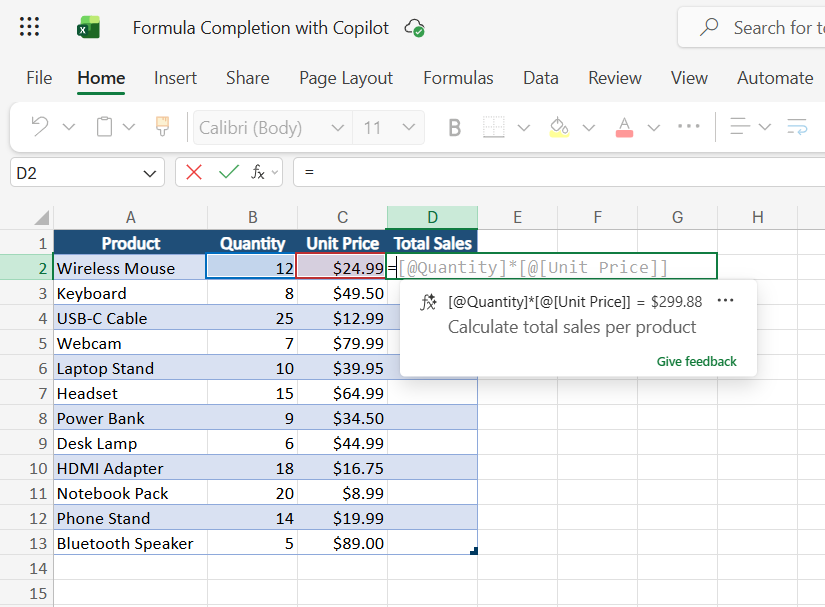
In Excel for the web, Copilot uses your worksheet data and column headers to suggest a suitable formula. You can review the formula and check the result. You can use the suggested formula instead of writing it from scratch. You can also ask Copilot to provide a short explanation of the suggested formula.
How to Use Formula Completion with Copilot
Calculate Total Sales
STEP 1: Open your Excel workbook in Excel for the web.
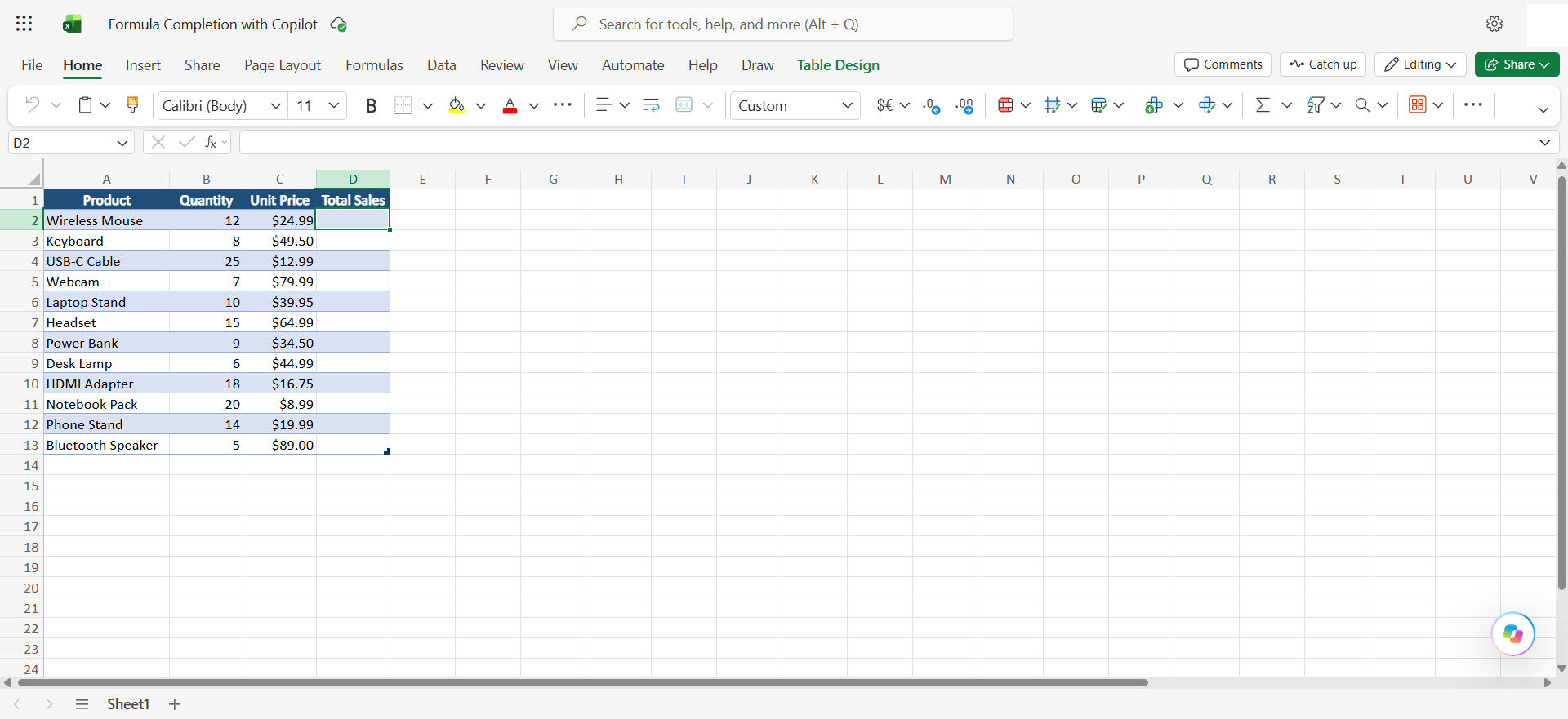
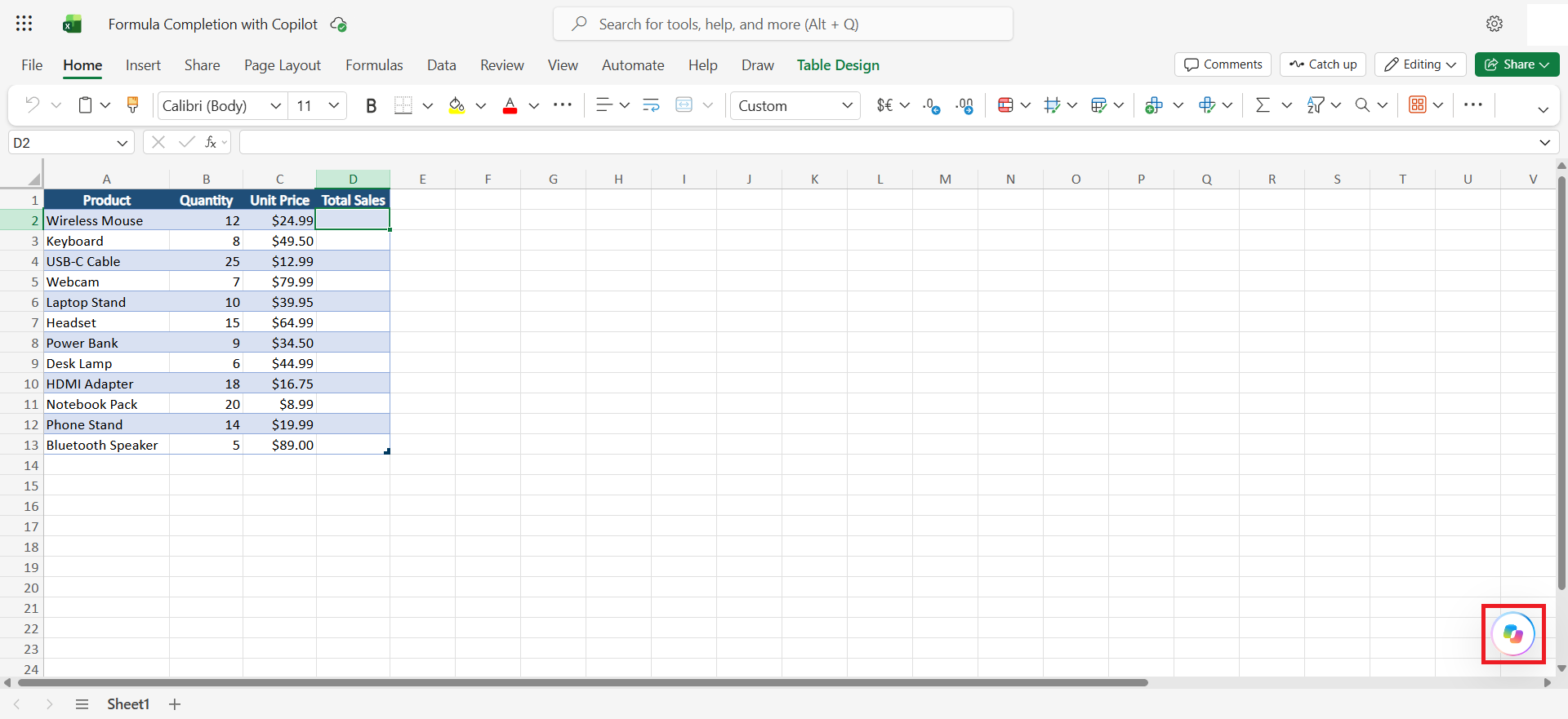
STEP 2: Select the cell where you want the formula and click on the Copilot button.
STEP 3: Type an equal sign (=) in the cell. Wait for Copilot to analyze your worksheet and generate a formula suggestion.
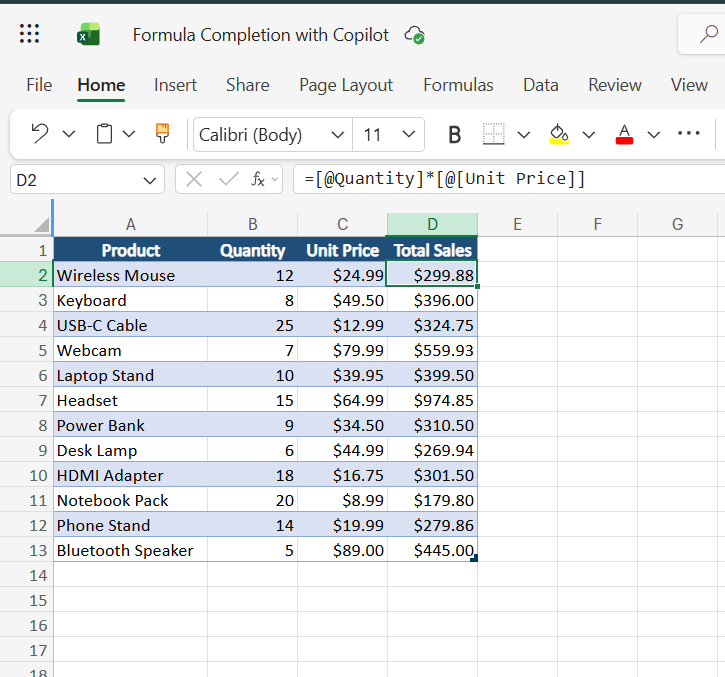
STEP 4: If the suggestion matches your requirements, accept it to insert the formula into the cell.
Calculate Percentage Change
When you type = in the Change % column, Copilot can suggest a formula to calculate the percentage increase.
For example:
=(C2-B2)/B2
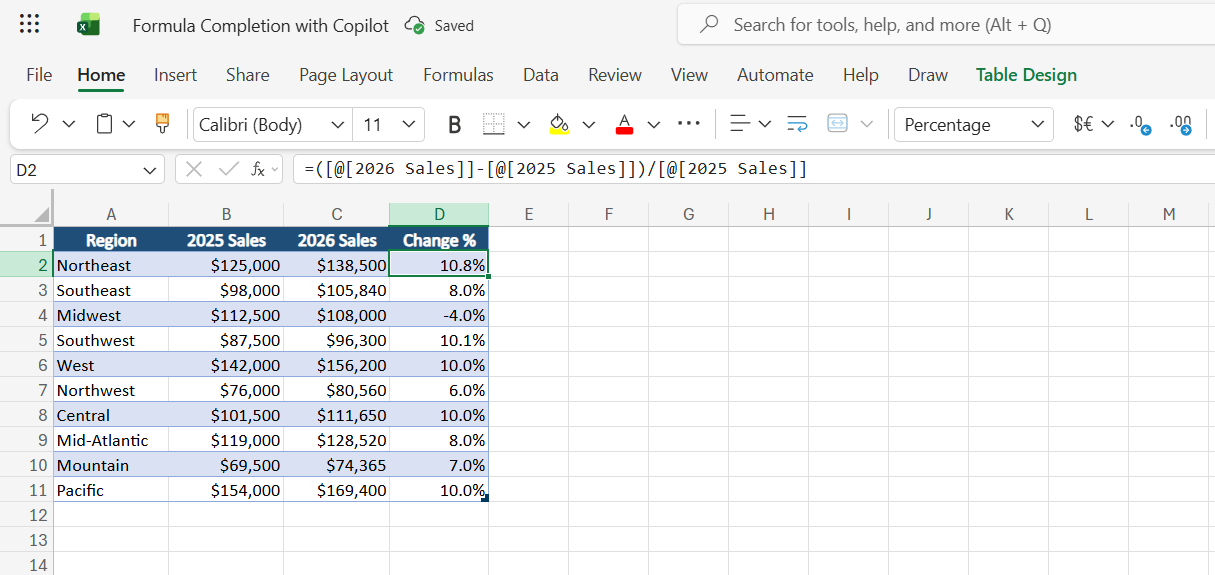
This formula calculates the percentage change between the two years.
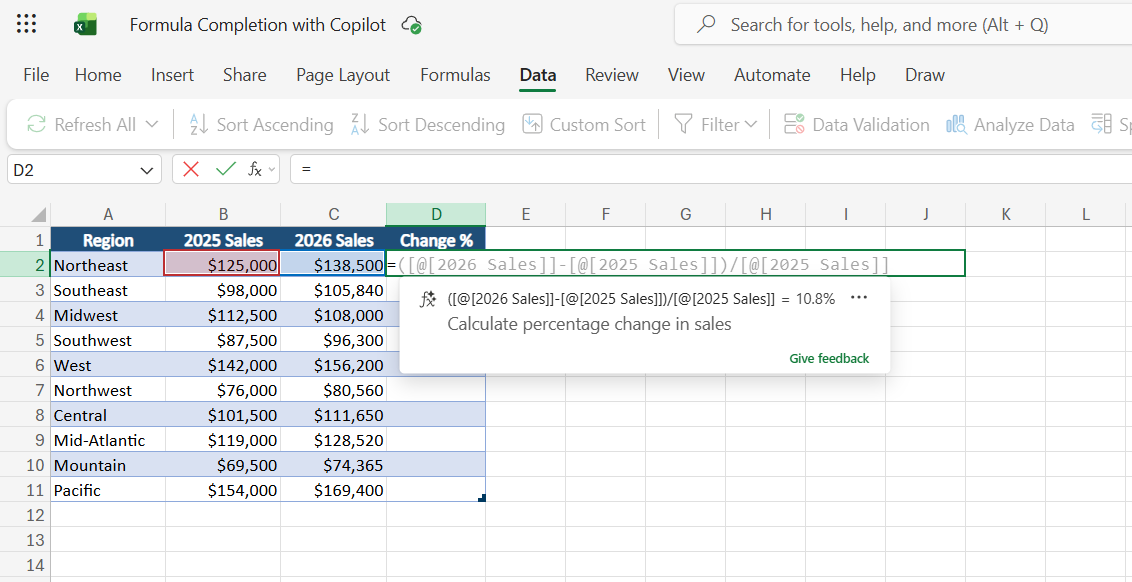
If you accept the suggestions, you can press Enter, and the formula will be inserted in the range.
Extract Information from Text
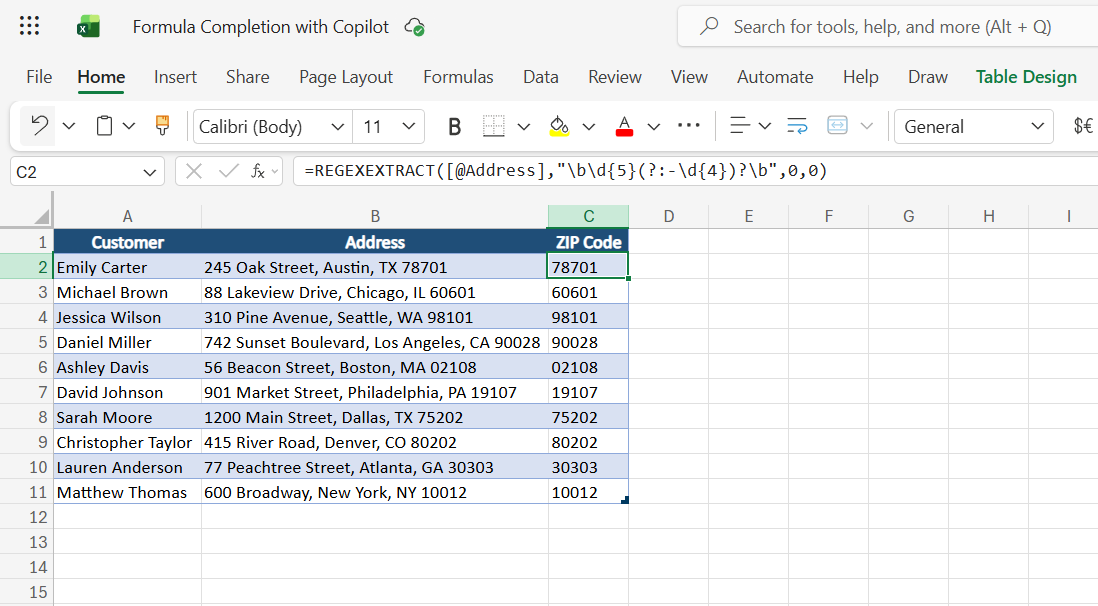
For example, suppose you have a list of customer addresses and want to extract ZIP codes into a separate column.
When you type = in the new column, Copilot can analyze the data and suggest a suitable formula to extract the ZIP code.
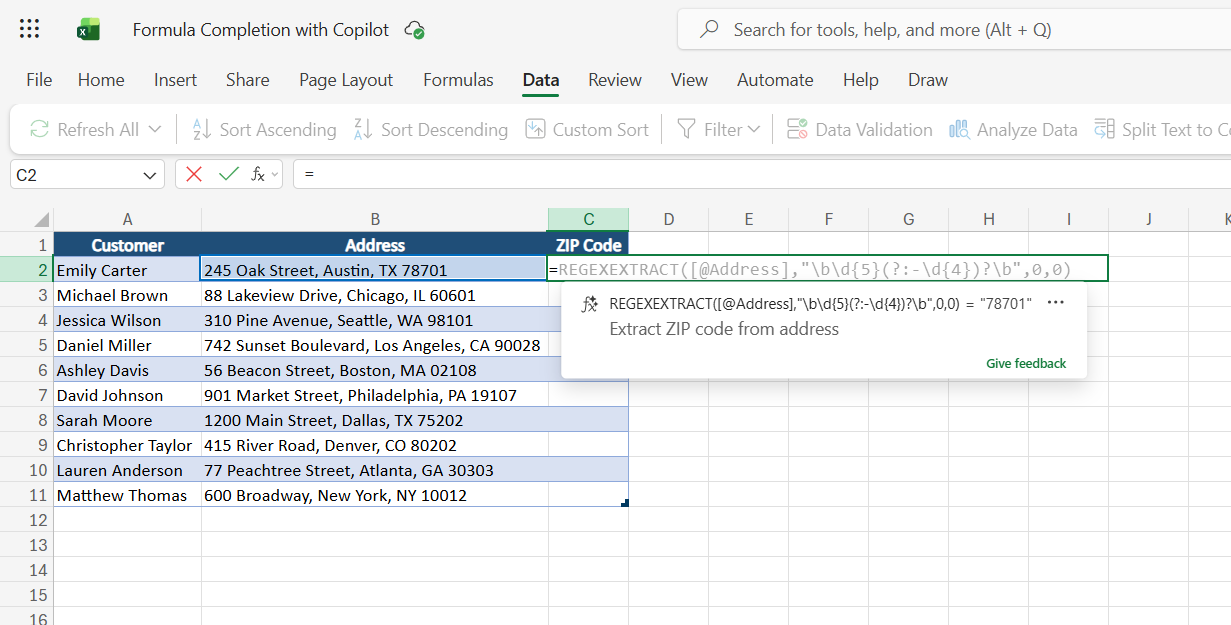
Press Enter to insert this formula in the workbook.
How to Turn Off Formula Completion Suggestions
If you do not want Copilot to suggest formulas while working in Excel, you can turn off the feature.
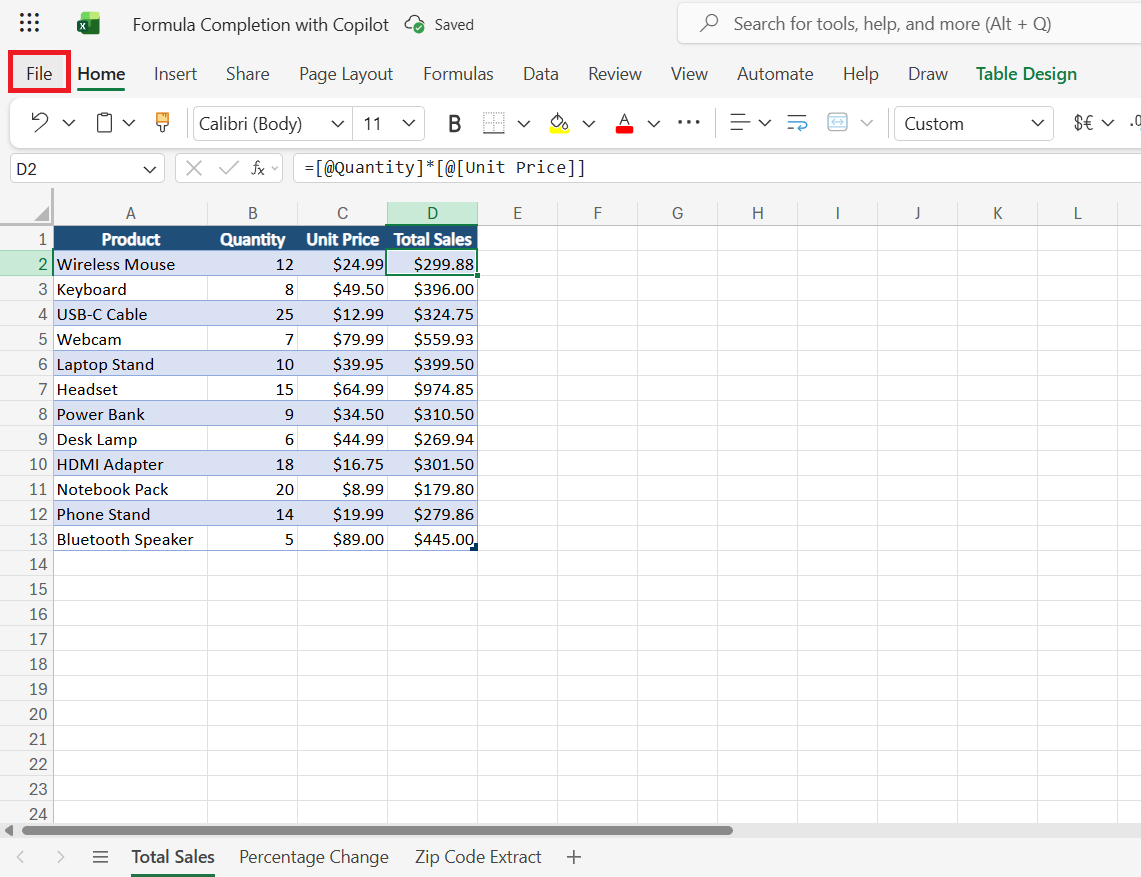
STEP 1: Open Excel and select File.
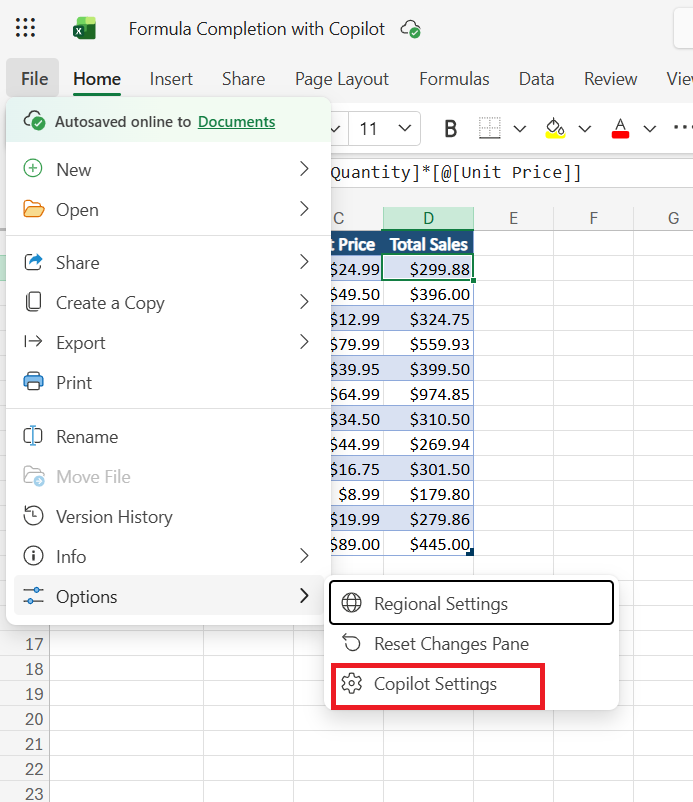
STEP 2: Select Options > Copilot Options.
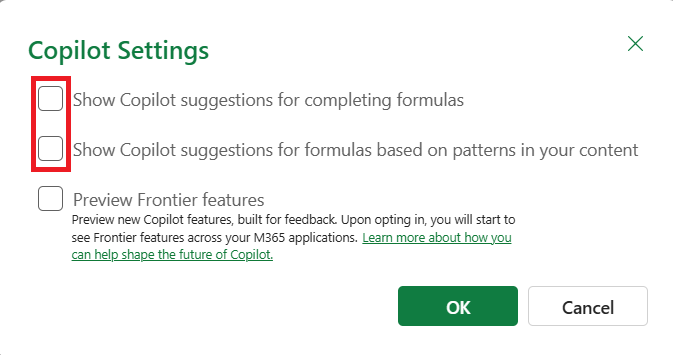
STEP 3: In the dialog box, clear the checkbox for:
- Show Copilot suggestions for completing formulas.
- Show Copilot suggestions for formulas based on patterns in your content.
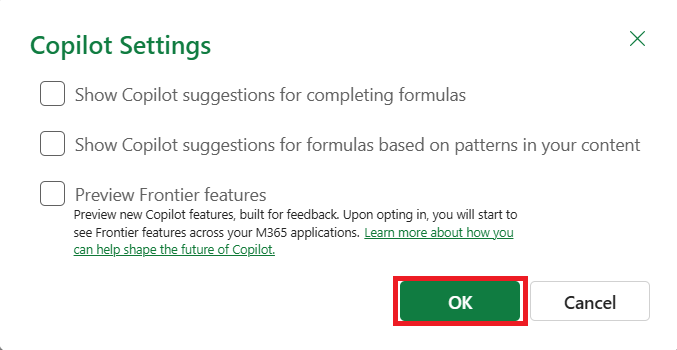
STEP 5: Select OK to save the changes.
Limitations of Formula Completion in Excel
- Copilot may suggest an incorrect formula if your worksheet does not provide enough context.
- Formula suggestions may take a few seconds to appear.
- Suggestions depend on the structure and information available in your worksheet.
- You may need to add more details or type additional characters to get the expected formula.
- Feature availability can vary depending on your Excel version, subscription, and language settings.
FAQs
1. What is formula completion in Excel?
Formula completion is a feature in Copilot that suggests formulas based on your worksheet data. When you type an equal sign (=) in the formula bar, Copilot will show formula suggestions to you.
2. How does Copilot predict formulas in Excel?
Copilot analyzes the data and column headers to suggest relevant formulas. You can also type the name of the formula, and the other parameters will be suggested by Copilot.
3. Can Copilot show the result of a suggested formula?
Yes. Copilot displays a preview of the calculated result along with a short explanation of the formula.
4. How to refine Copilot’s formula suggestions?
To refine the formula suggestions by Copilot, enter more characters or details to narrow down the result.
5. How to turn off formula completion in Excel?
- Go to File > Options
- Select Copilot
- Clear the option for Show Copilot suggestions.

John Michaloudis is a former accountant and finance analyst at General Electric, a Microsoft MVP since 2020, an Amazon #1 bestselling author of 4 Microsoft Excel books and teacher of Microsoft Excel & Office over at his flagship MyExcelOnline Academy Online Course.

 30 Days - Full Access